
On X, I keep seeing posts like: “I spend more time explaining context to Claude than actually working with it.”
The answer to this frustration has been hiding in plain sight since October 2025: Claude Skills.
I’ve watched too many professionals treat Skills like an advanced feature they’ll “get to eventually.” They’re missing the entire point.
Skills aren’t complicated. They’re Markdown files. That’s it. A folder with a text file that tells Claude how to do something your way.
In this guide, you’ll learn:
What Skills actually are (and why they’re simpler than you think)
How to create your first skill in under 20 minutes - two different ways
The anatomy of a SKILL.md file with real examples
How Skills work across Claude.ai, Claude Code, and even other AI tools
Today’s post is guest written by Ilia Karelin, author of Prosper. If you like this post, you’re sure to like Prosper - so go check it out!
Now let’s get into it.
What is a skill (and why it’s not what you think)
A Skill is a folder containing instructions, scripts, and resources that Claude loads automatically when relevant.
Think of it like onboarding materials for a new hire. Instead of explaining your quarterly report format every time, you hand them a guide. Skills work the same way—except the “new hire” is Claude, and it never forgets.
Here’s what makes Skills different from regular prompting:
Custom Instructions apply to everything Claude does for you. “Keep responses concise.” “Ask clarifying questions first.” These are global preferences.
Projects give you a workspace with uploaded documents and accumulated context. Great for ongoing work like a product launch or research project.
Skills are task-specific procedures that activate automatically when needed. They’re portable across all conversations, modular, and can include executable code.
The real power? Skills compose together. Ask Claude to create a quarterly report with your brand guidelines, and it can load both your QBR skill and your brand guidelines skill simultaneously.
The AI Agent for production-grade codebases
Today’s newsletter is sponsored by Augment Code!
Augment Code’s powerful AI coding agent and industry-leading context engine meet professional software developers exactly where they are, delivering production-grade features and deep context into even the largest and gnarliest codebases.
With Augment Code you can:
Index and navigate millions of lines of code
Get instant answers about any part of your codebase
Automate processes across your entire development stack
Build with the AI agent that gets you, your team, and your codebase
The anatomy of a SKILL.md file
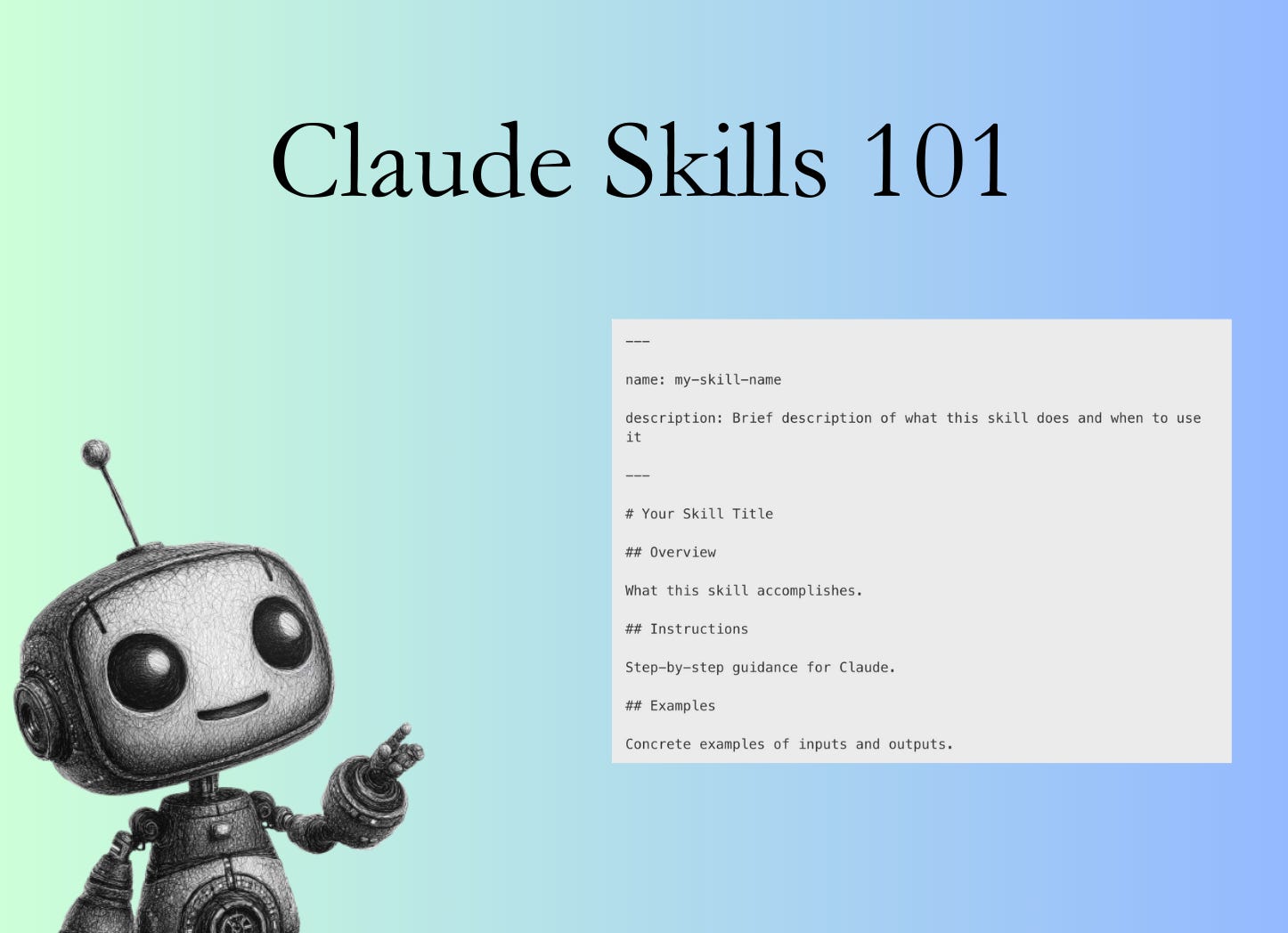
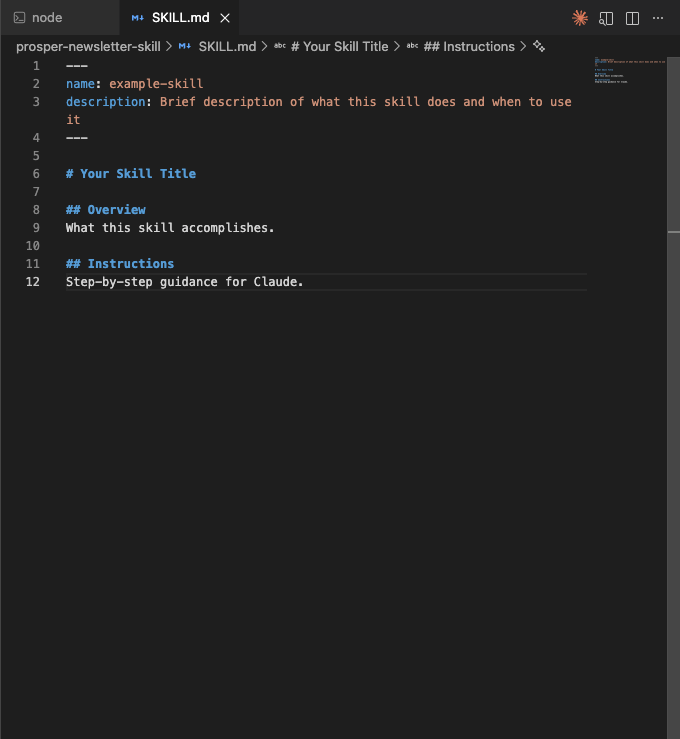
Every skill starts with one required file: SKILL.md. Here’s the structure:
---

name: my-skill-name

description: Brief description of what this skill does and when to use it

---

# Your Skill Title

## Overview

What this skill accomplishes.

## Instructions

Step-by-step guidance for Claude.

## Examples

Concrete examples of inputs and outputs.
That’s the skeleton. Let’s break down what matters:
The Metadata (YAML Frontmatter)
The section between the --- markers contains two critical fields:
name: Your skill’s identifier. Keep it lowercase with hyphens, max 64 characters.
Good: quarterly-report, customer-feedback-analysis
Bad: My Super Cool Skill For Reports!
description: This is where Claude decides whether to use your skill. Make it specific about what the skill does AND when to use it.
Compare these:
“Helps with documents”
“Creates quarterly business reviews following Acme Corp’s format. Use when the user mentions QBR, quarterly report, or quarterly business review.”
The description is your skill’s trigger. Vague descriptions mean Claude won’t know when to activate it.
The markdown body
Below the metadata, you write instructions in plain Markdown. Claude reads this when the skill activates.
Keep it under 5,000 words. If you need more, split content into additional files and reference them. Claude uses progressive disclosure - it only loads what it needs:
Level 1: Skill name and description (always loaded, ~100 tokens)
Level 2: Full
SKILL.mdcontent (loaded when skill activates)Level 3: Additional files like REFERENCE.md or scripts (loaded on demand)
This means you can bundle extensive documentation without overwhelming Claude’s context window.
Method 1: Create a skill through conversation (the easy way)
This is the fastest approach, especially if you’re just starting out.
Step 1: Open a new Claude chat and say something like:
“I want to create a skill for writing meeting summaries with action items.”
Step 2: Claude will load its built-in skill-creator skill and start asking questions:
What specific steps should the skill follow?
What format should input/output be?
Do you want anything else to capture?

Step 3: Upload any reference materials - templates, examples, style guides.
Step 4: Claude packages everything into a .skill file with:
A properly formatted SKILL.md
Any reference files you provided
Scripts if needed for consistent operations
Step 5: Click “Copy to your skills” (or download if you want to share with others).
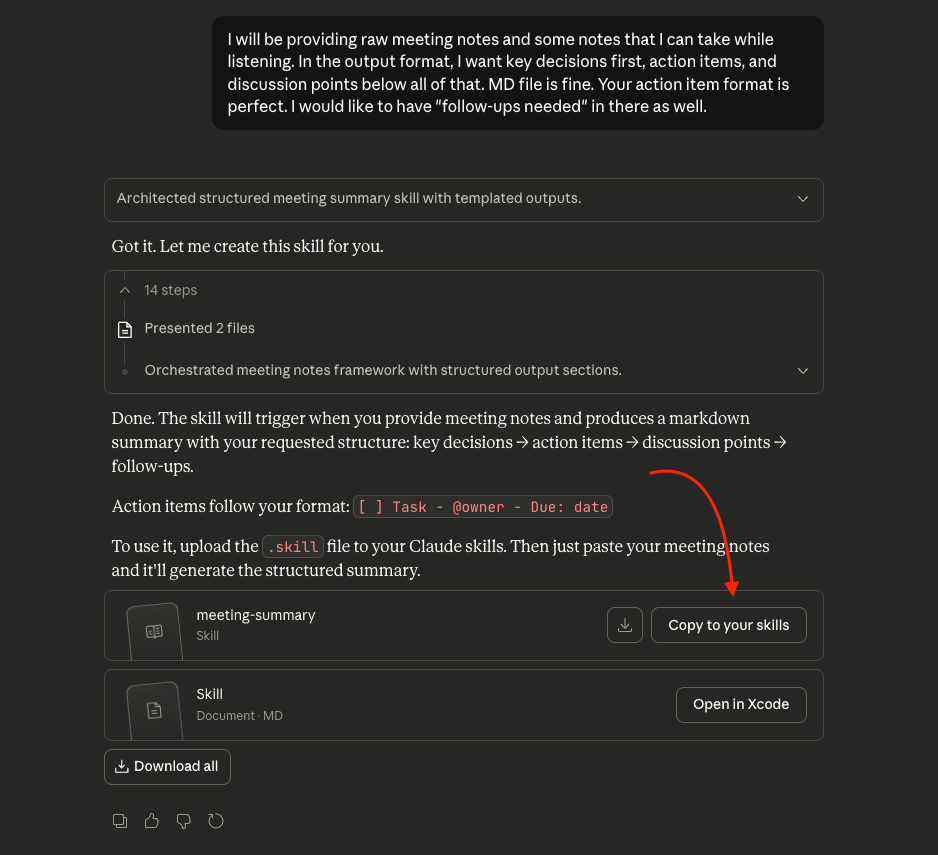
That’s it. The skill is now available across all your conversations.
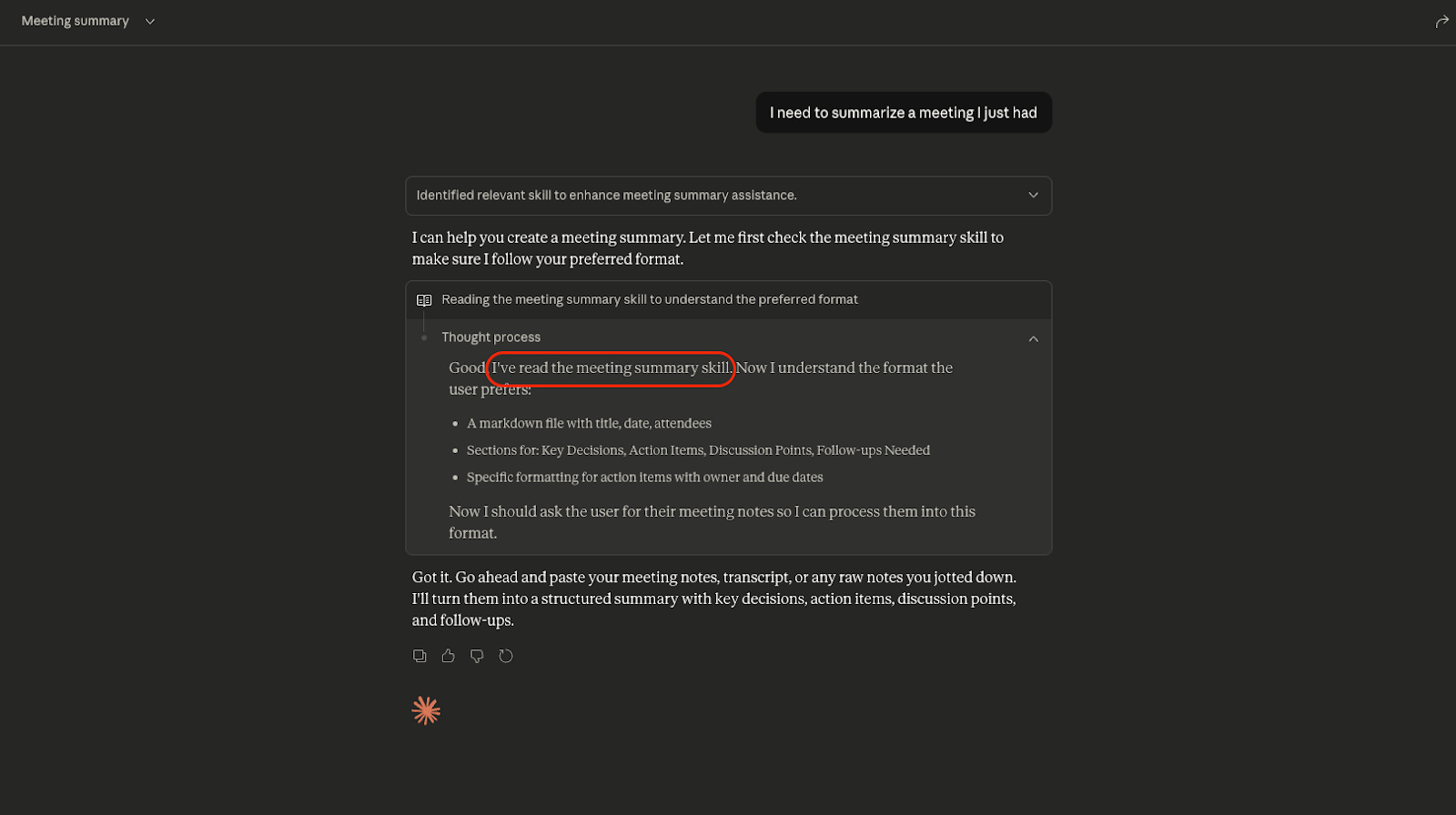
Pro tip: Test immediately in the same conversation. Ask Claude to do a task the skill should handle and watch Claude’s thinking - you’ll see “Reading [skill name]” when it loads correctly.
Method 2: Create a skill manually (for developers & power users)
If you prefer control or want to version control your skills, create them manually.
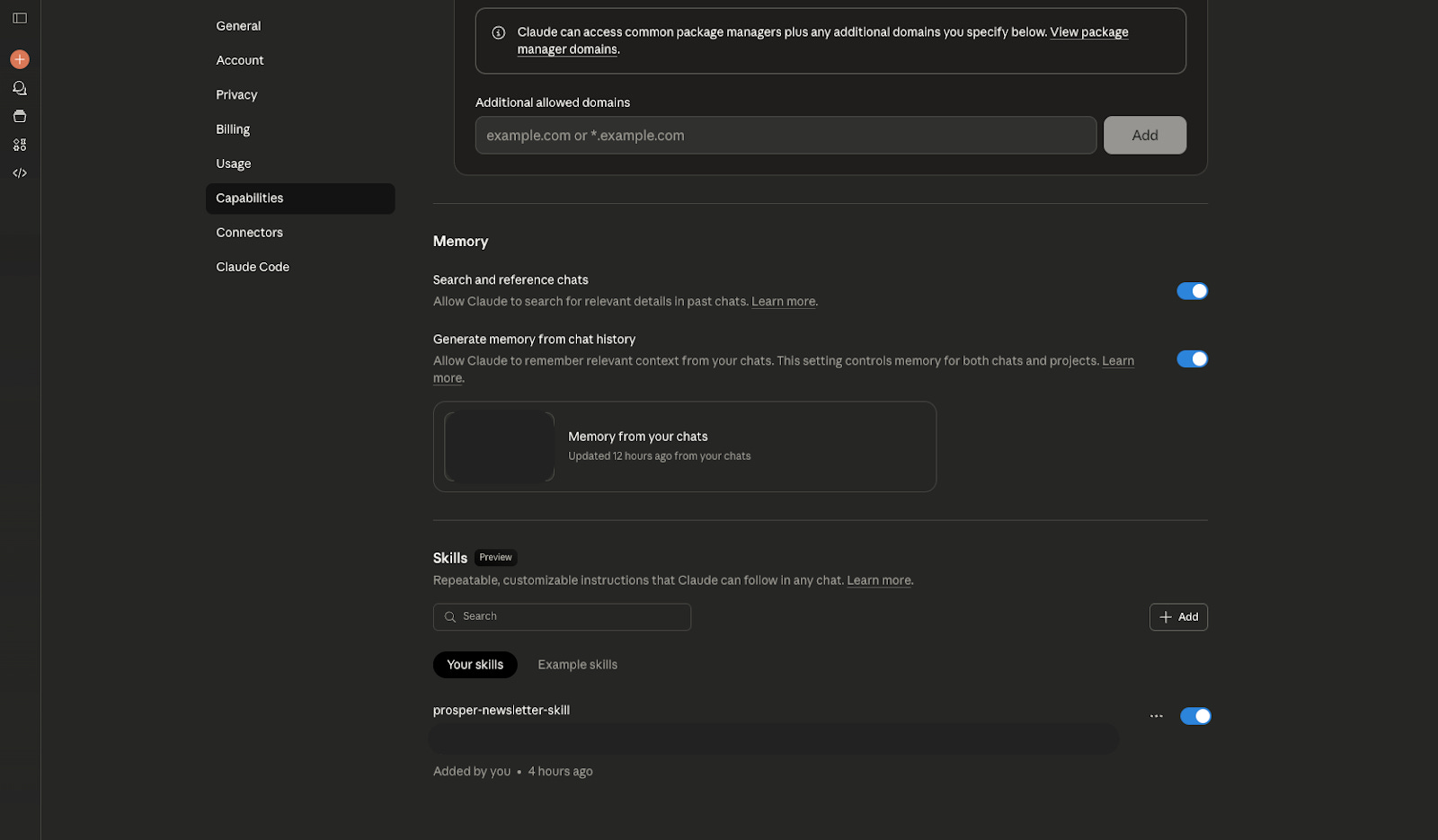
For Claude.ai
Create a folder with this structure:
my-skill/

├── SKILL.md (required)

├── reference.md (optional)

└── templates/

    └── template.txt (optional)
Then zip it and upload via Settings > Capabilities > Skills > Add.
For Claude Code
Personal skills go in ~/.claude/skills/:
mkdir -p ~/.claude/skills/my-skill-name
Out of that, you can also create slash commands for Claude Code if you want to invoke the skill yourself. Give it a name and it’s ready to rock’n’roll!
Real Example: A Meeting Summary Skill
Here’s a complete skill you can use as a template
---

name: meeting-summary

description: Transform raw meeting notes into structured summaries with key decisions, action items, and follow-ups. Use when summarizing meetings, processing transcripts, or extracting action items from notes.

---

# Meeting Summary

## Overview

Converts raw meeting notes or transcripts into structured, actionable summaries that capture what matters.

## Output Structure

1. **Key Decisions** - What was agreed upon

2. **Action Items** - Tasks with owners and due dates

3. **Discussion Points** - Important topics covered

4. **Follow-ups Needed** - Open questions or next steps

## Action Item Format

- [ ] Task - @owner - Due: date

## Input Types Supported

- Raw meeting notes

- Transcripts from Otter.ai, Zoom, etc.

- Quick bullet points taken while listening

## Guidelines

- Extract decisions even if not explicitly stated as “we decided”

- Assign owners to every action item when mentioned

- Flag items that need follow-up but have no clear owner

- Keep summaries scannable - busy people read these
The Open Standard: Skills Work Everywhere
Here’s something most people don’t know: Anthropic released Agent Skills as an open standard in December 2025.
What does this mean? Skills you create for Claude work in:
Claude.ai (web, mobile, desktop)
Claude Code
Windsurf, Goose, Amp, and other coding agents
Build once, use everywhere. That’s the promise.
When to Create a Skill (Decision Framework)
Create a skill when:
You’ve explained the same process to Claude 3+ times
You have documented standards you want applied consistently
A task requires specific steps in a specific order
You want the same behavior across all conversations
Don’t create a skill when:
It’s a one-off task
The context changes significantly each time
You’re still figuring out the best approach
Advanced: Adding Scripts to Skills
Skills can include executable code for operations that need to be deterministic.
For example, Anthropic’s PDF skill includes a Python script that extracts form fields - something that’s more reliable as code than token generation.
# scripts/extract_fields.py

import pdfplumber

def extract_form_fields(pdf_path):

    with pdfplumber.open(pdf_path) as pdf:

        # Deterministic extraction logic

        return fields
Reference scripts from your SKILL.md:
For form field extraction, run:
python scripts/extract_fields.py input.pdfClaude executes the script without loading it into context - efficient and consistent.
The Bottom Line
Yes, maybe it will take you a bit to understand how to create it and set everything up. But once you do, all you will need to do after that is to run a slash command or run a skill - and Claude will do the rest, literally. It’s like a forever expert that sits with you and ready to be used at any time.
Most people use Claude like a very smart search engine. Ask a question, get an answer, move on. But the real power isn’t in individual queries. It’s in building systems that make Claude smarter about how you work.
Start with one skill. Your most-repeated task or something that you want to create on a consistent basis.
Because the real competitive advantage isn’t having access to AI tools - everyone has that now. It’s knowing how to make those tools work the way you work.
Great overview here, Jeff. Thanks for putting that out.
Solid write up bros 🤜🤛