
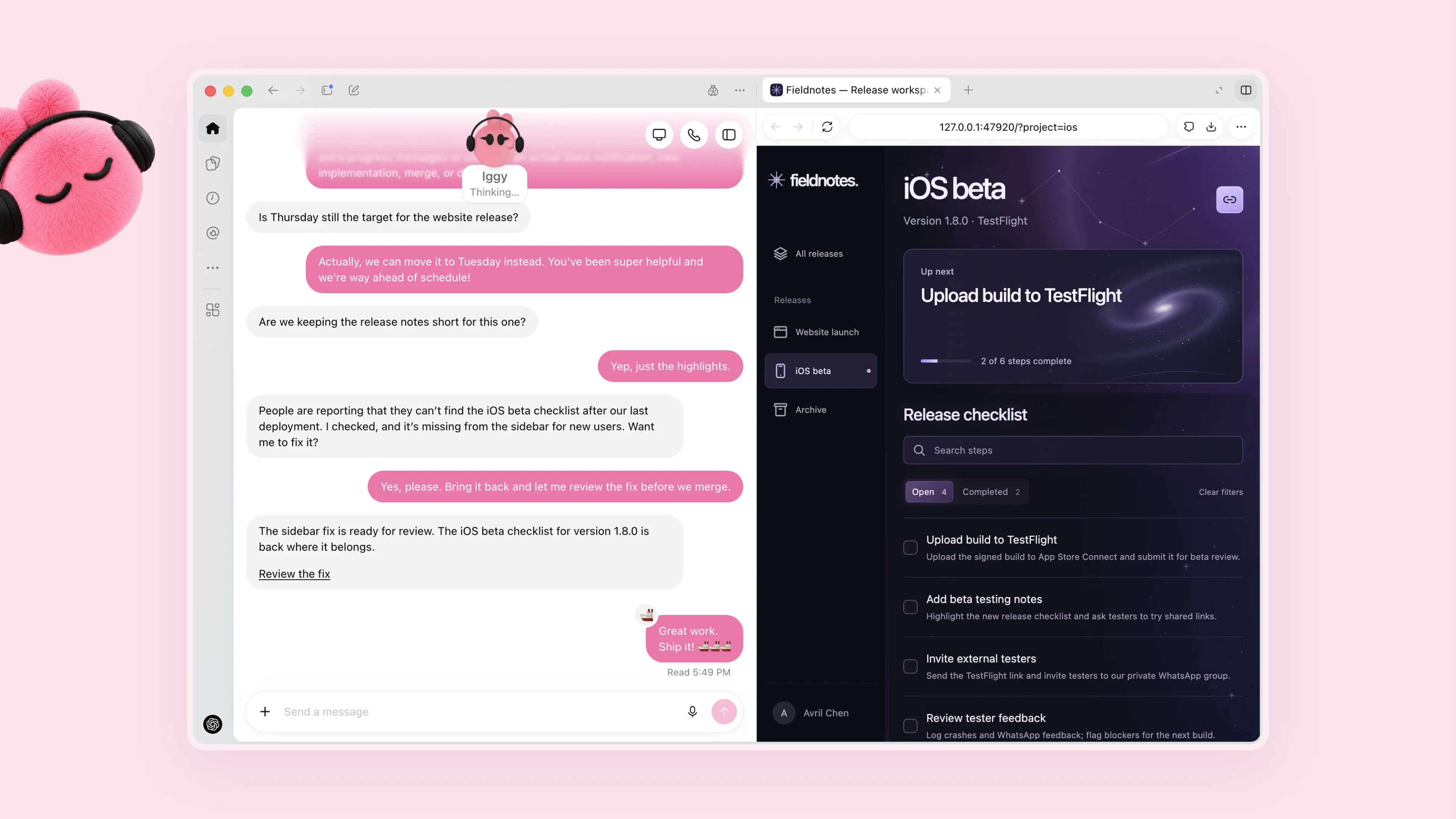
AI agents aren’t just for software anymore. Claude Code, Codex, and Cursor all pioneered turning language models into autonomous agents. If you’re using AI to write software, you’ve likely already made the transition from treating AI like an asking machine into treating it like a doing machine.
Dots is bringing that productivity to the rest of your life.
How are Dots different than ChatGPT?
You might be wondering why you need another AI product. After all, ChatGPT and Claude are already pretty capable.
The distinction comes down to how you interact with it.
Traditional chatbots are reactive. You ask a question, they provide an answer. Even when they can use tools, you’re generally responsible for initiating and managing each task.
AI agents can go further. They use a language model to reason about a goal, interact with external tools, and take actions to accomplish it.
Software engineers are already familiar with this. When you ask Claude Code to implement a feature, it doesn’t just explain how to do it. It reads your code, edits files, executes commands, runs tests, and hopefully delivers working software.
Dots apply that same concept to a much broader set of tasks.
Each Dot is powered by GPT-6 Astra, OpenAI’s frontier model designed for complex work. It also has its own cloud computer and browser, which it can use to interact with websites and run software without relying on your computer.
But the most interesting difference is that Dots are persistent and asynchronous.
Rather than treating every conversation as an isolated request, you can give your Dot an ongoing responsibility.
It can remember important context, delegate work to ChatGPT Work or Codex, monitor things you’ve asked it to keep track of, and proactively suggest what needs attention.
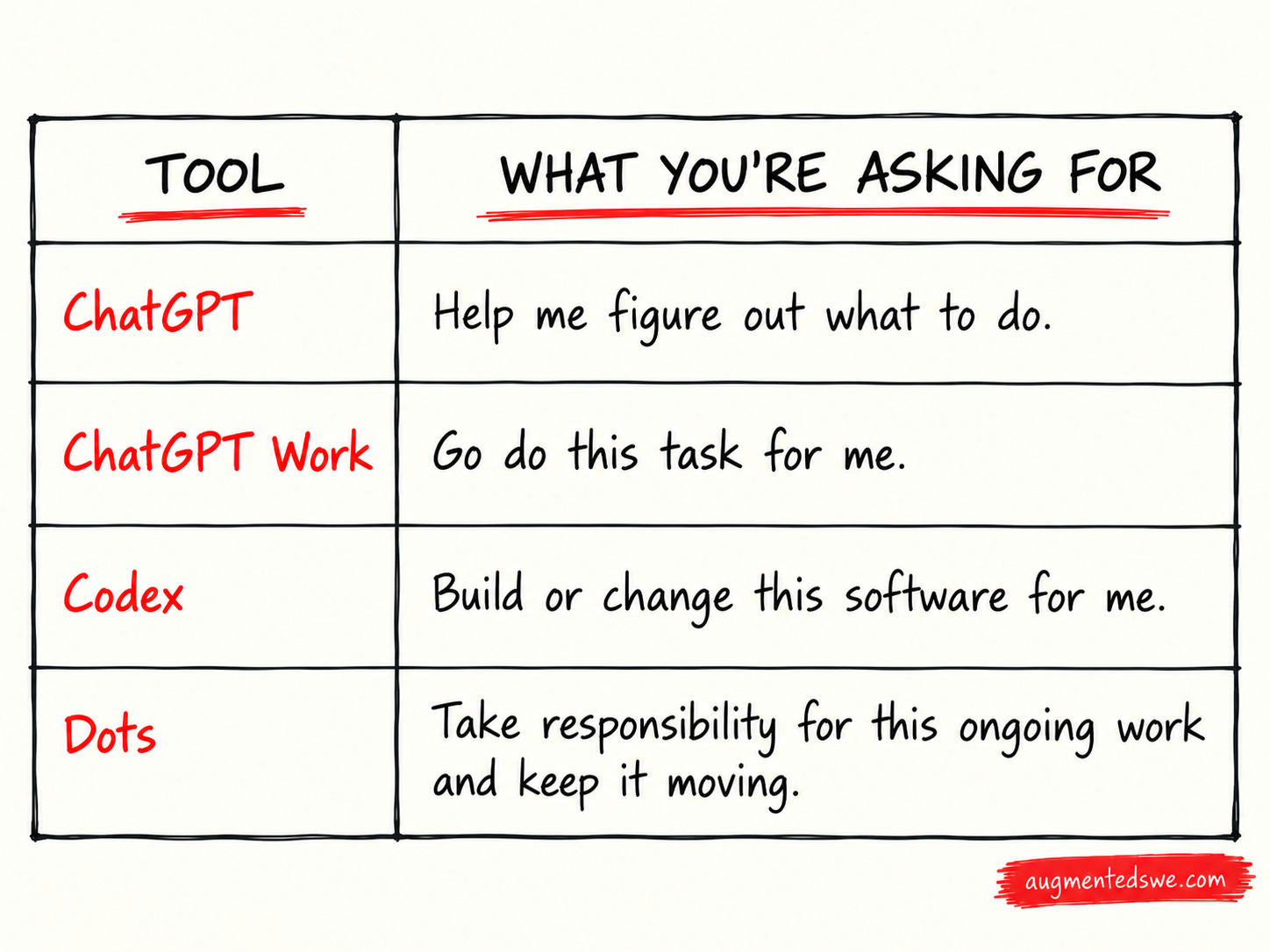
Think of the distinction this way:
ChatGPT: Help me figure out what to do.
ChatGPT Work: Go do this task for me.
Codex: Build or change this software for me.
Dots: Take responsibility for this ongoing work and keep it moving.
It’s also meant to feel more like messaging a coworker than sitting in front of an AI interface waiting for a response.
You can assign multiple tasks, leave the conversation, and return when your Dot has results or needs your input.
That doesn’t make Dots entirely autonomous. You still control its permissions, and certain actions require your approval. But you no longer need to personally orchestrate every step.
Giving Dots tools
There’s one more important distinction: tools.
Dots can use plugins/tools/connectors/MCPs that connect ChatGPT to the services you already use, including things like Notion, Google Drive, and GitHub.
And those connections are what make a Dot genuinely useful.
For example, one of the first things I asked my Dot, named Chief, was to find quotes for radon mitigation at my house.
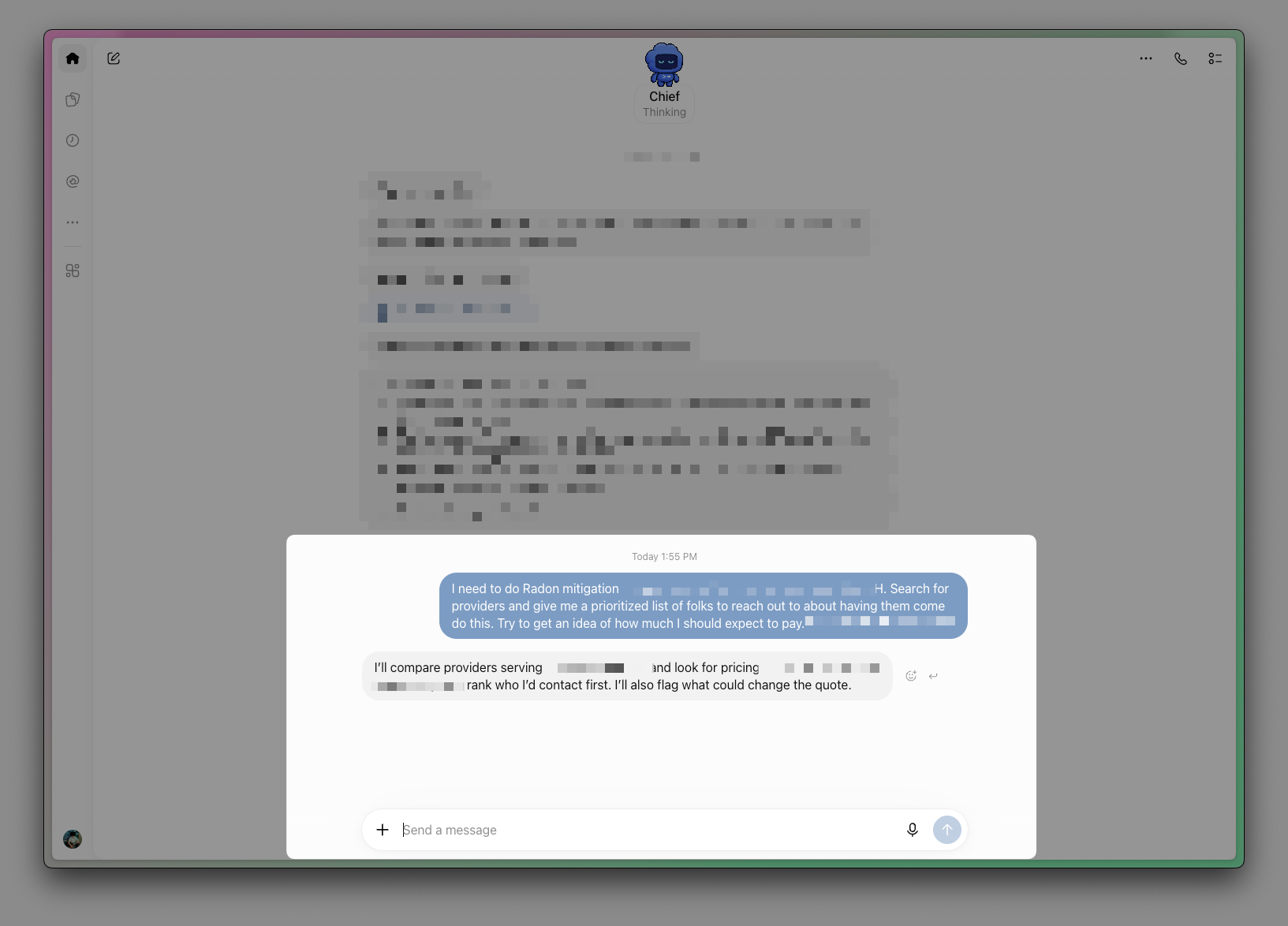
It was useful, but it wasn’t particularly revolutionary. ChatGPT could have helped me research local contractors too.
Things got more interesting when I connected Notion.
I’d been putting off building a proper management system for The AI-Augmented Engineer. I was tracking advertising inventory, guest posts, and other operational work in a messy collection of Markdown files.
I asked Chief to build a Notion workspace for all of it.
It initially used computer use to control my browser, then switched to the Notion integration to finish the work. Rather than giving me instructions for setting up databases, it actually built them.
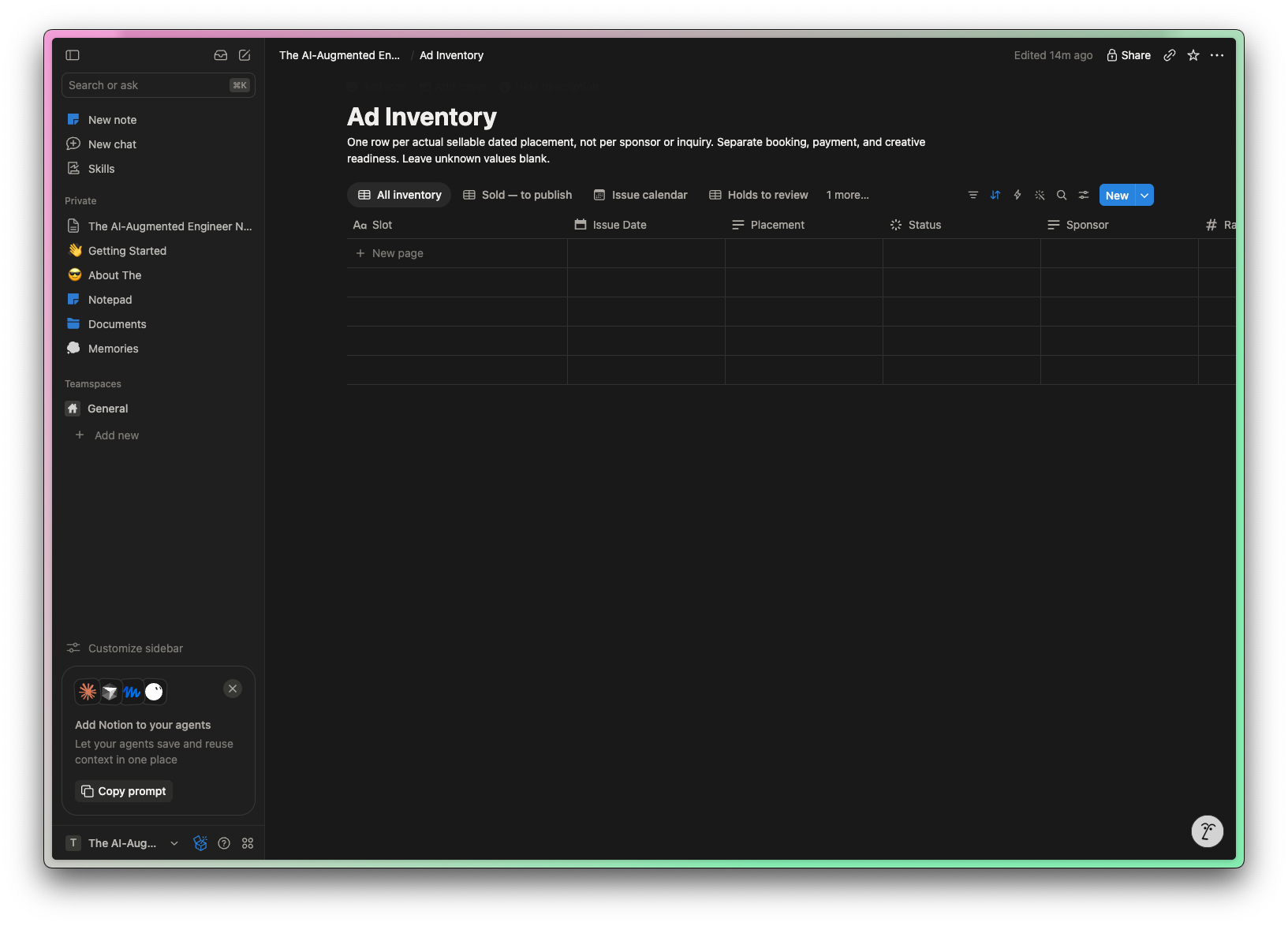
That’s the kind of work I want to delegate.
And it gets even more interesting when we combine tools with reusable workflows. After I show you how to install and set up Dots, I’ll show you how I use my Dot to automate some work for the newsletter.
If you’re curious about AI agents, you’re obviously in the right spot. I spend dozens of hours researching each of these guides so you have a shortcut mastering AI for your work.
I’d love to have you join us and get notified when we share more tutorials like this.
How to install Dots
Dots are part of ChatGPT, so there’s no separate app to install.