
NotebookLM is an AI research tool and “thinking partner” developed by Google. In simple terms, it’s like a smart notebook that you can feed with your own sources – documents, PDFs, notes, webpages, even images or audio transcripts. Then you can interact with these sources via an AI chatbot interface and a number of other incredible tools.
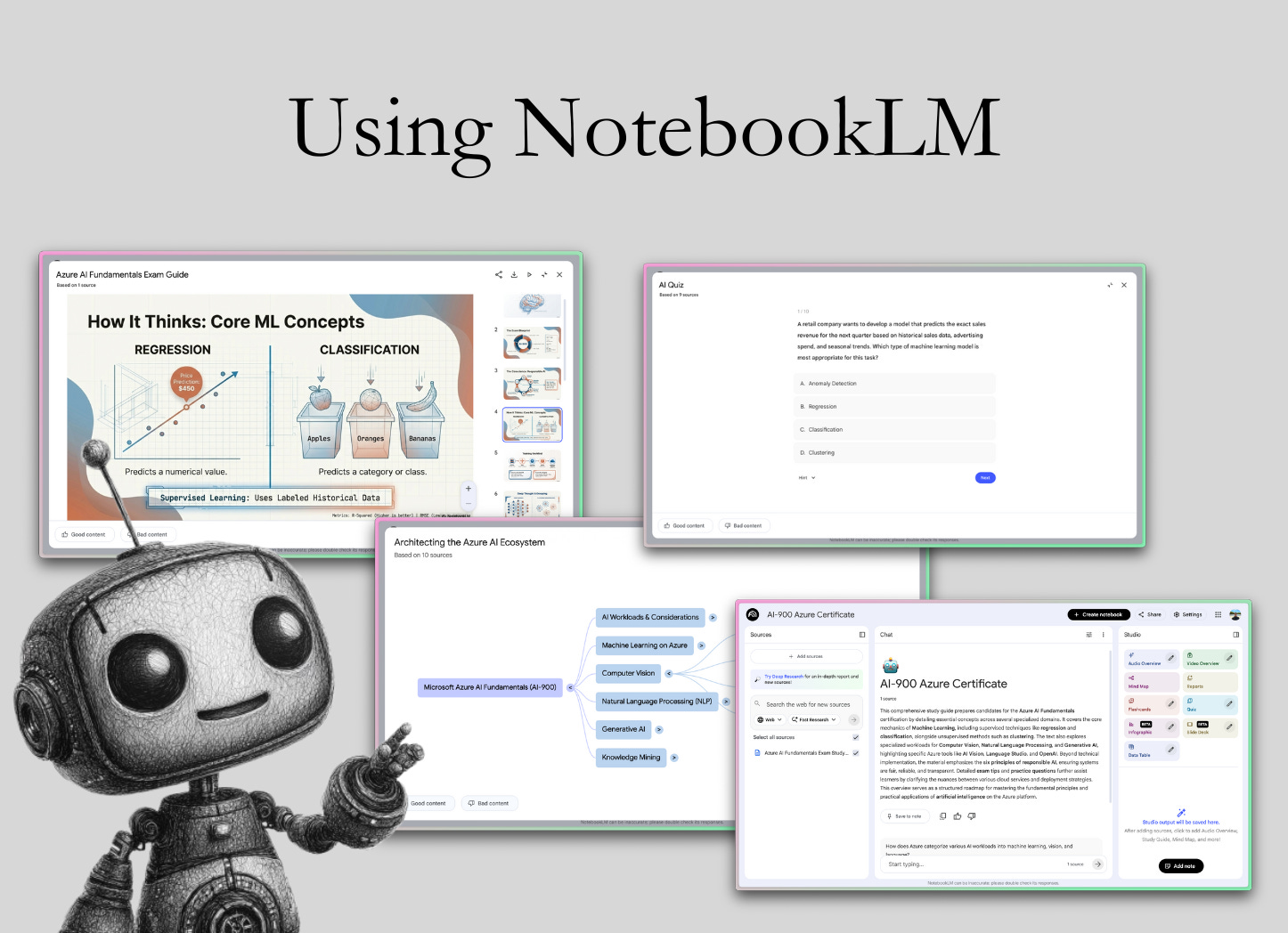
Unlike a generic AI chat that knows a bit about everything, NotebookLM’s knowledge is grounded in the specific content you give it, which means it provides responses based on those trusted sources rather than random internet data.
This design greatly reduces the hallucinations (fabricated facts) that AI models sometimes produce, because NotebookLM won’t make up answers out of thin air – it will tell you what’s in your materials, often with references to the exact source.
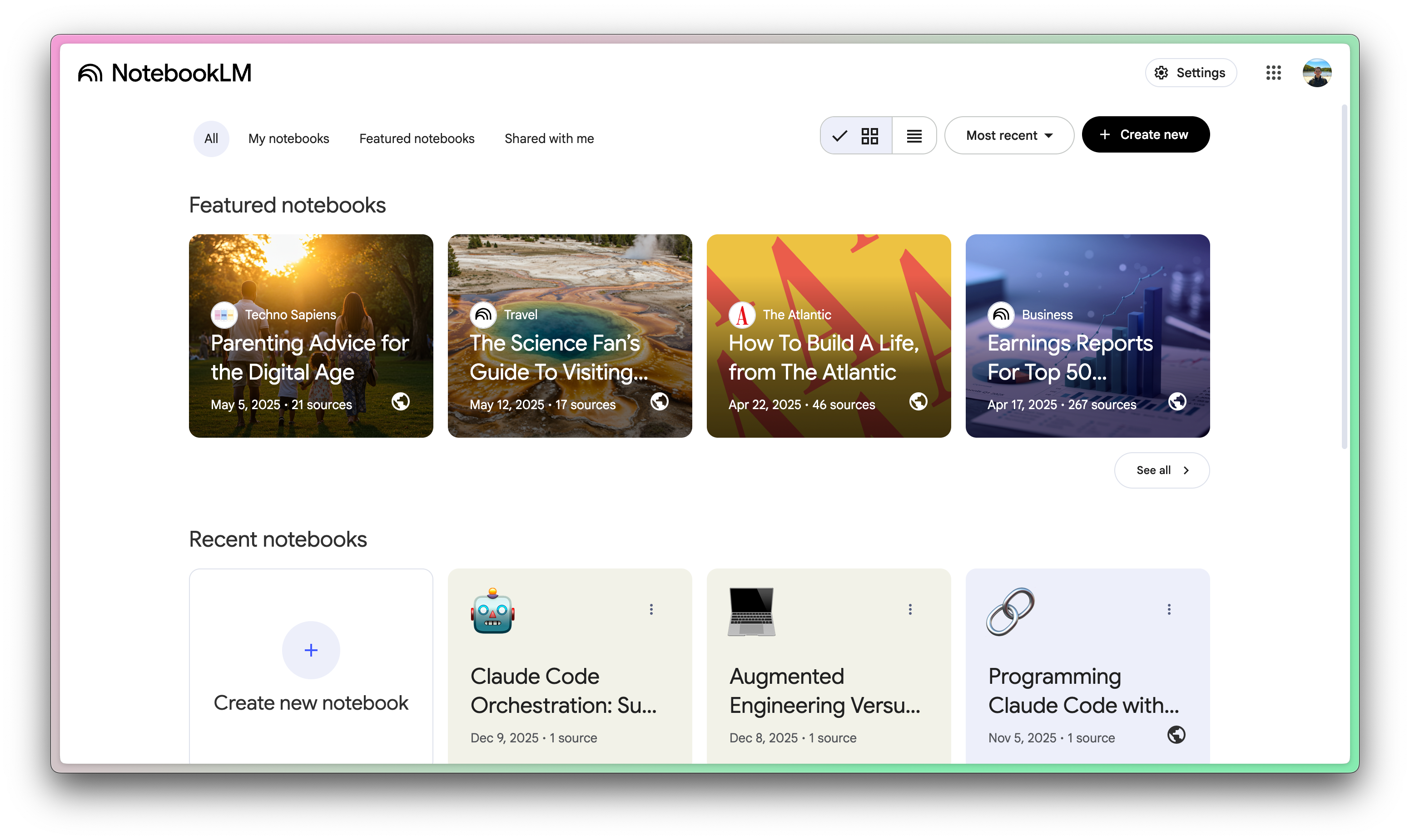
In this NotebookLM tutorial, we’ll cover:
How to upload information
How to get information
Using NotebookLM
Making quizzes
Making infographics
Making a slide deck
Referencing a notebook in Gemini
Let’s get started by adding some information to a new notebook.
How to upload information into NotebookLM
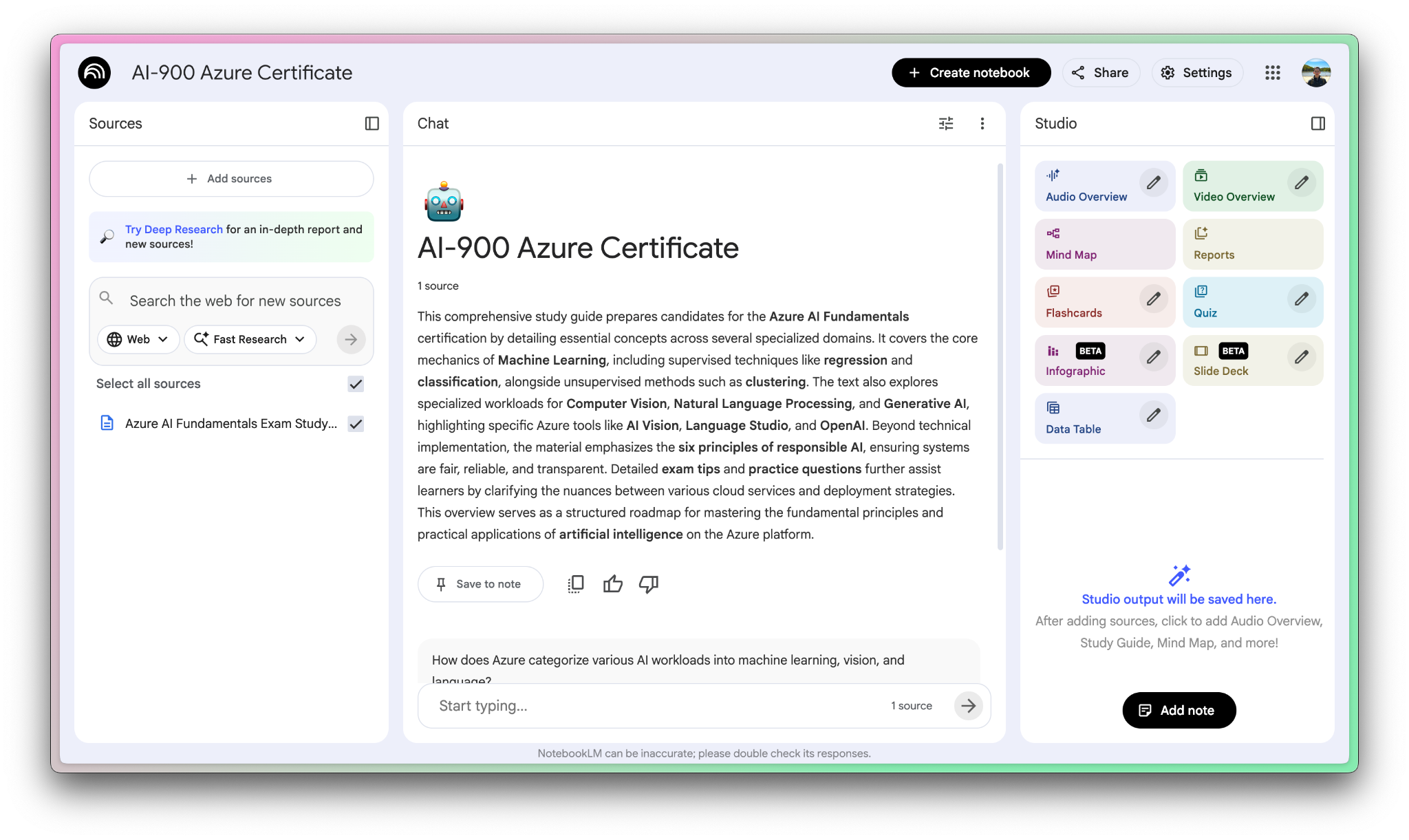
NotebookLM isn’t much use without sources, and there are a few ways to set up your sources. I’m in the middle of studying for the Azure AI-900 certification right now, so we can use this course as an example notebook.
I took notes from a course in markdown, so uploading the notes is an easy copy and paste.
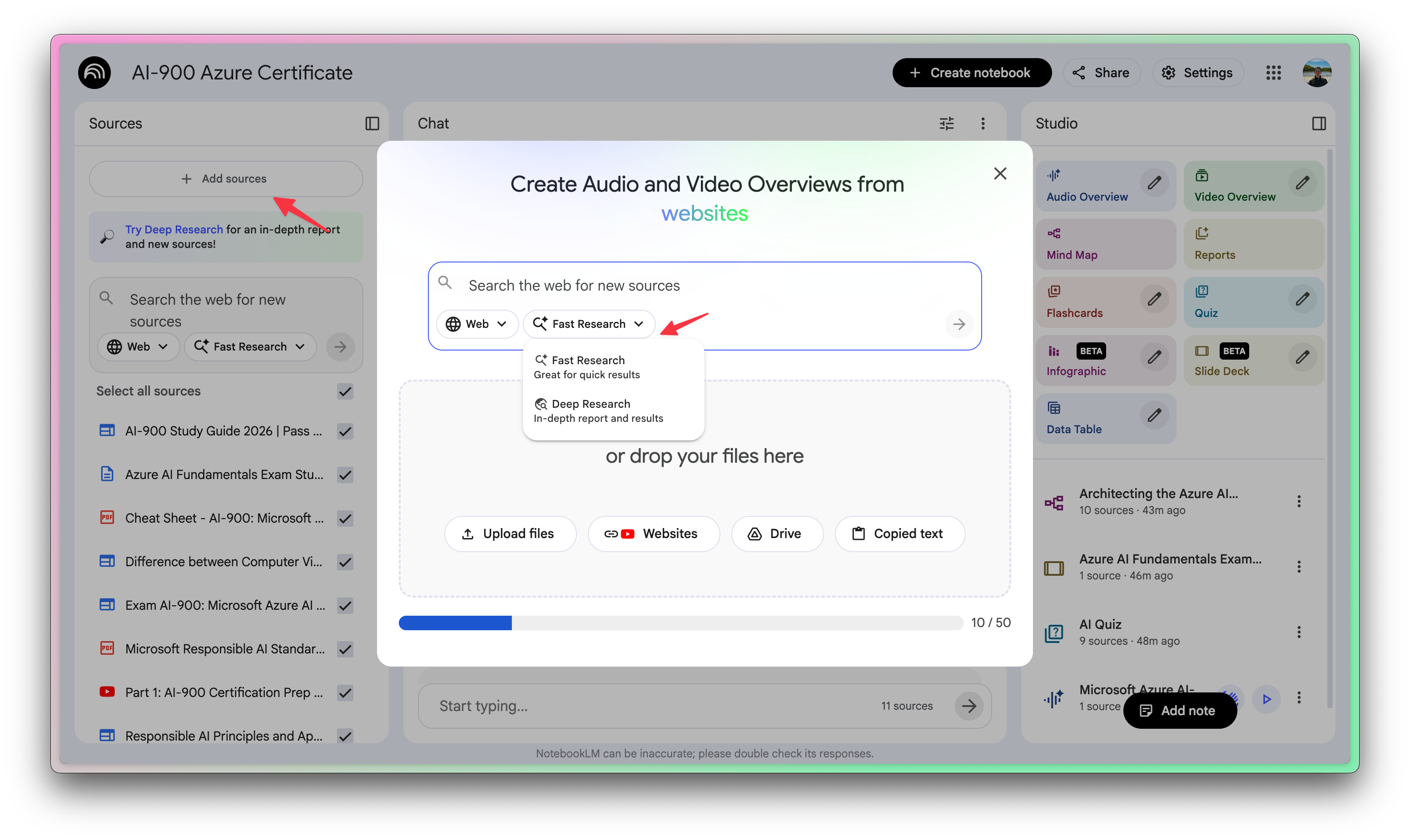
How to get information into NotebookLM with research
You can also use fast research or deep research to get sources into your NotebookLM notebook. This will use Gemini to do a web crawl and add relevant sources from the web into your notebook.
Once you’re happy with your sources, it’s time to get to learning!
Today’s newsletter is sponsored by my friends at Augment Code.
Augment has been kind enough to give me early access to Intent, their next-generation tool for developing software.
All signs are pointing to the fact that the IDE is no longer the ideal place to create software.
Augment Code has jumped on this opportunity, and my first impressions are great.
Using NotebookLM for audio overviews
No good NotebookLM tutorial would be complete without AI overviews. AI overviews are probably the most popular (and useful) feature of NotebookLM.
Imagine you could listen to a podcast directly about a topic you were learning, exclusively with materials you’re studying from.
That’s what audio overviews do for you.
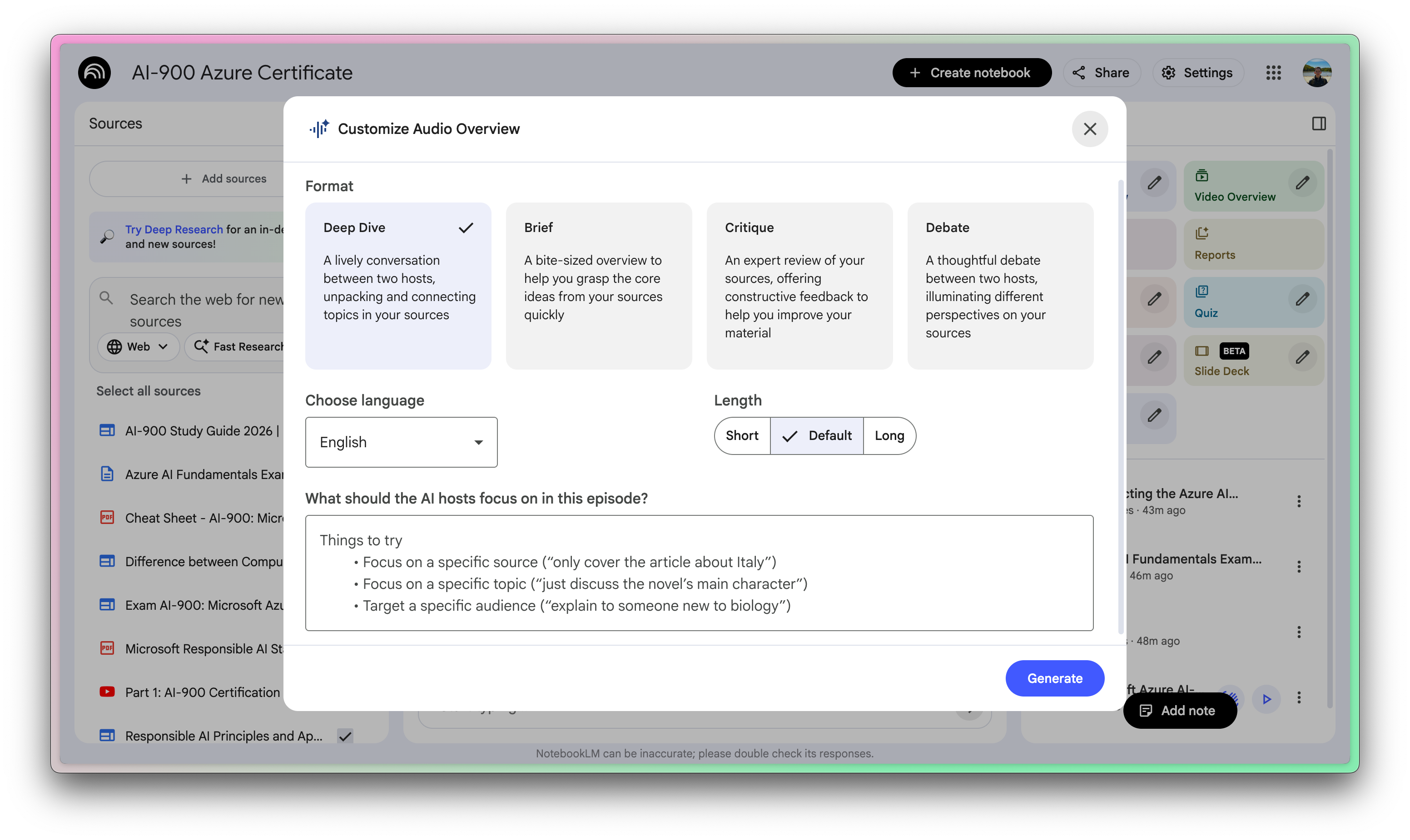
You can generate audio files that are “fake podcasts” from your notebook. You can specify the format of the “podcast”, then use the web or mobile app to listen to it.
This has been game-changing for my graduate school studies. It’s hard to squeeze in studies after work, and audio overviews help me repurpose time driving or exercising.
Making quizzes with NotebookLM
One of the best ways to learn something is to quiz yourself. Active recall is a powerful rule in education, and many people swear by creating and taking quizzes of their study material.
In fact, starting to do this (manually) in undergrad was a huge point of leverage for me. I can’t tell you how many quizzes and study guides I made over those years.
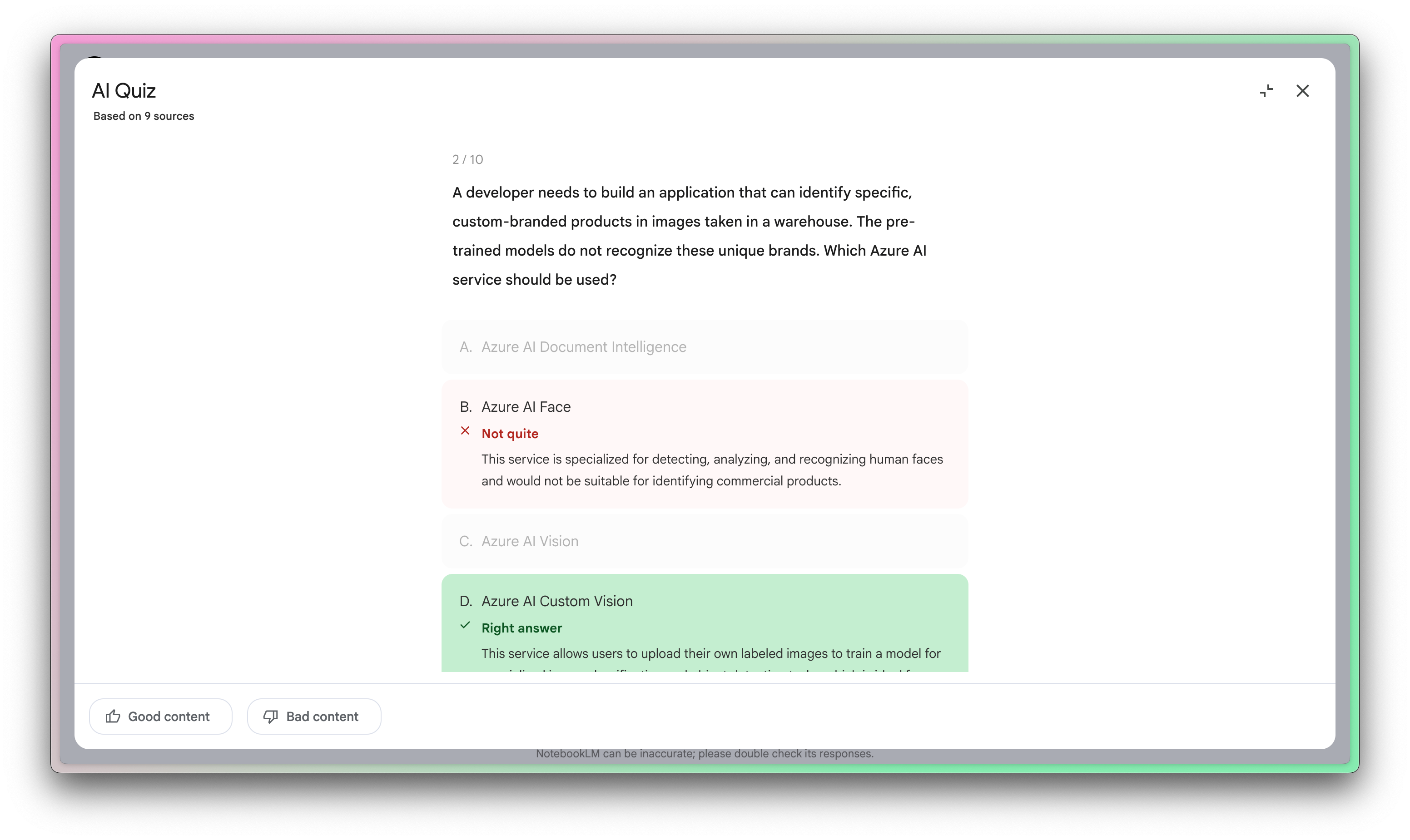
NotebookLM will generate quizzes from your source material, giving you the chance to take quizzes you haven’t seen before, created directly from your notes and sources.
Making infographics with NotebookLM
This might be less helpful for learning than quizzes, but it’s really helpful for presenting information from your source material.
NotebookLM infograhics use Nano Banana (also from Google) to generate incredible info-graphics from your notebook.
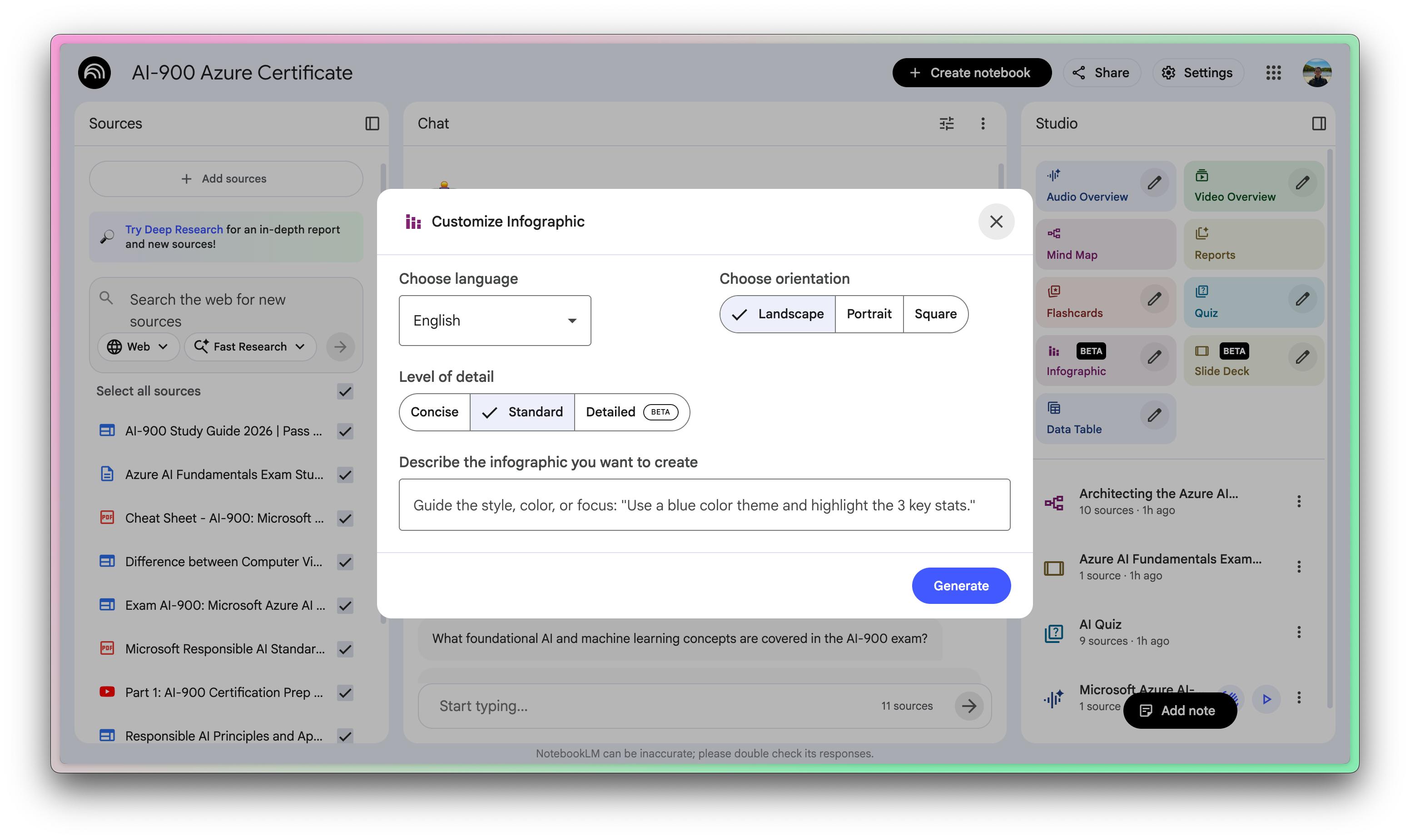
You can choose your orientation, level of detail, and even add some custom prompt instructions to guide the style.
Making a slide deck with NotebookLM
Google built on the infographic feature to bring us the ability to create entire slide decks.
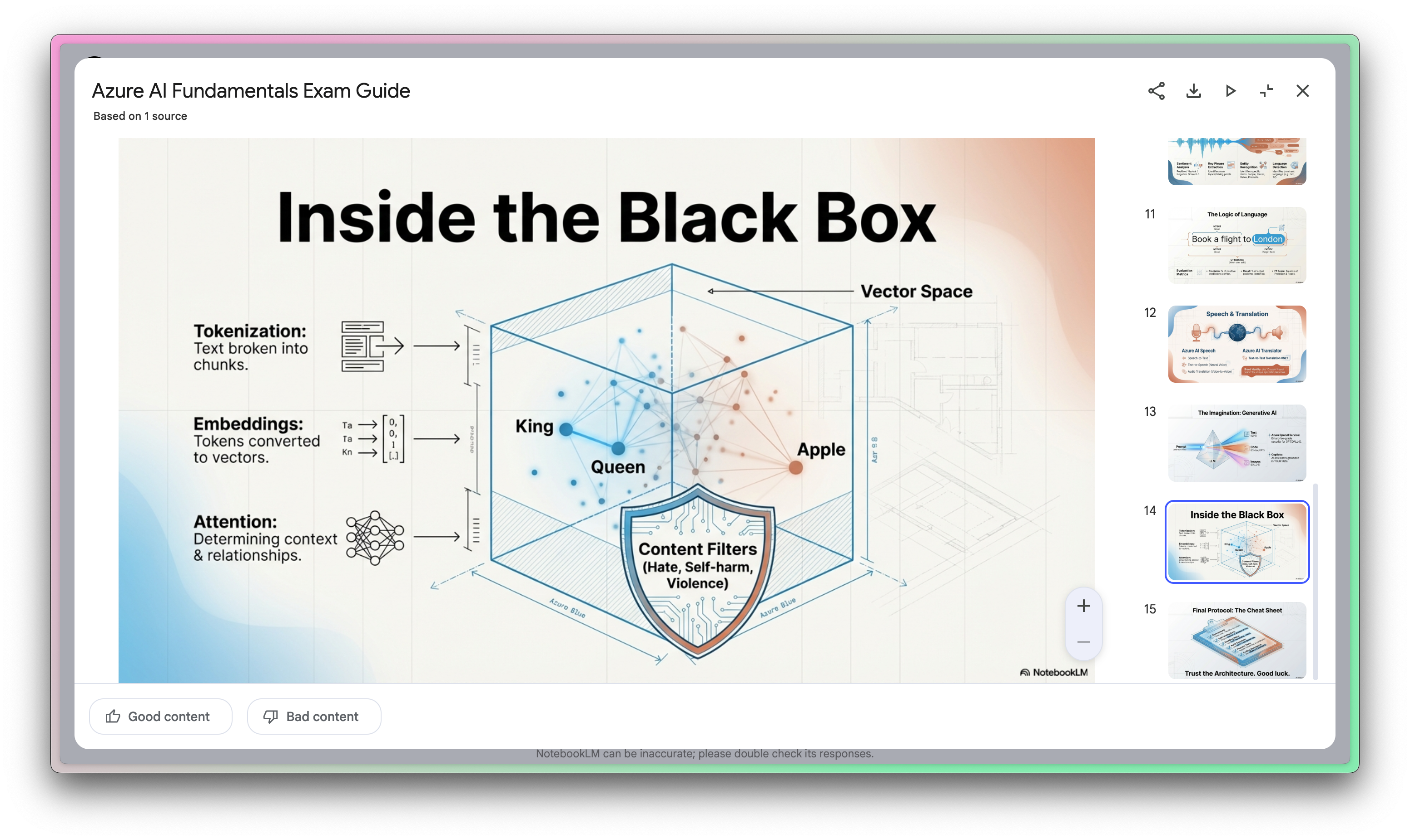
The feature does not offer a ton of customization, which ironically makes it super easy to use.
This is a cool way to get a slide show set up very quickly, but infographics in these decks seem to be prone to hallucination at a higher rate than general chat tools, so carefully check your output before giving a big talk!
Referencing a notebook in Gemini
The last thing that’s worth mentioning in this NotebookLM tutorial is Gemini.
NotebookLM is powered by Gemini behind the scenes, but did you know you can also power Gemini with your NotebookLM notebooks?
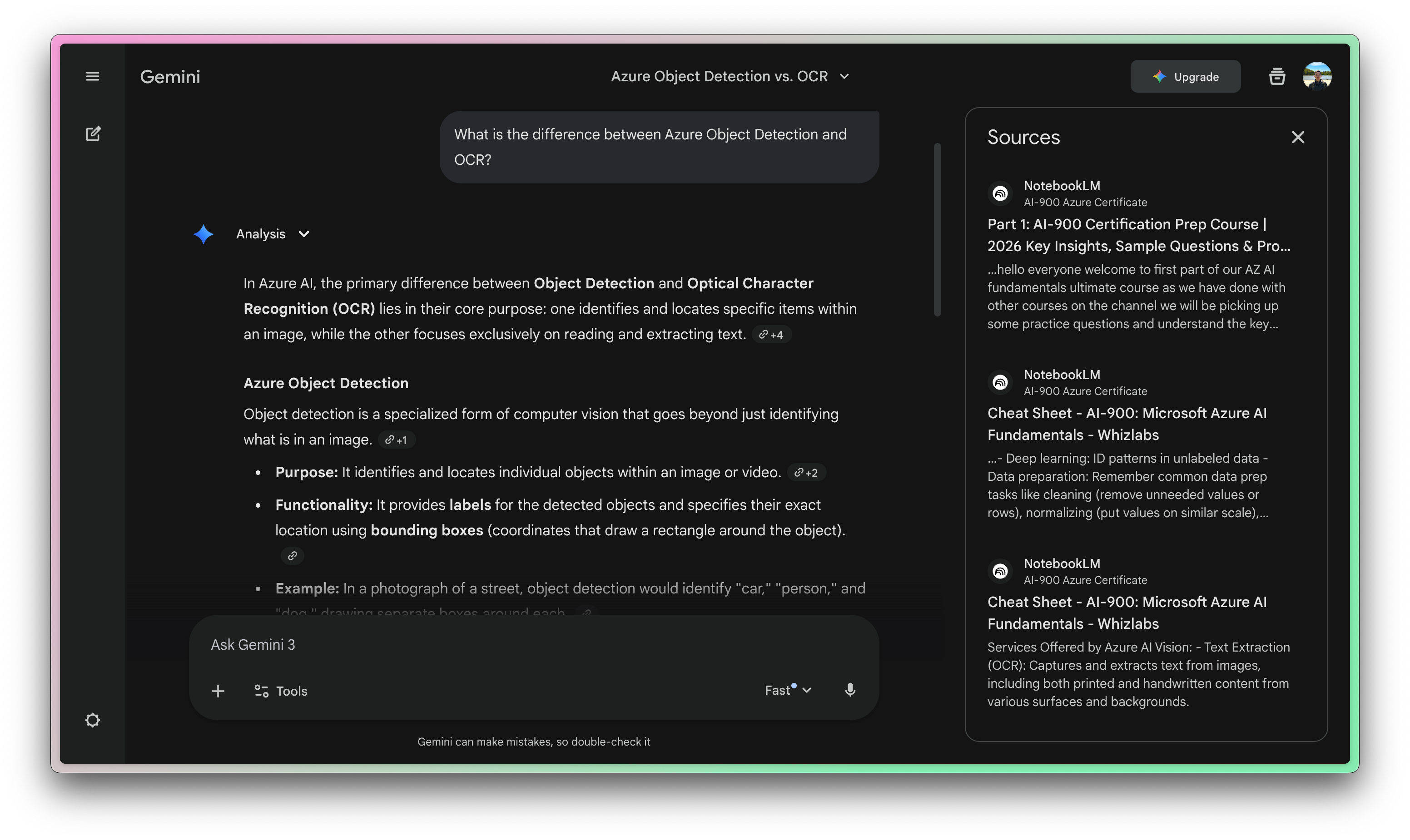
You can add any notebook to your Gemini chat prompt to have the model reach directly into your sources for context.
This is a step in the right direction for personal intelligence, where you can chat with your learning materials.
If you work any kind of job where you use your brain, you owe it to yourself to try NotebookLM. Comment below if you have any tips to share!