
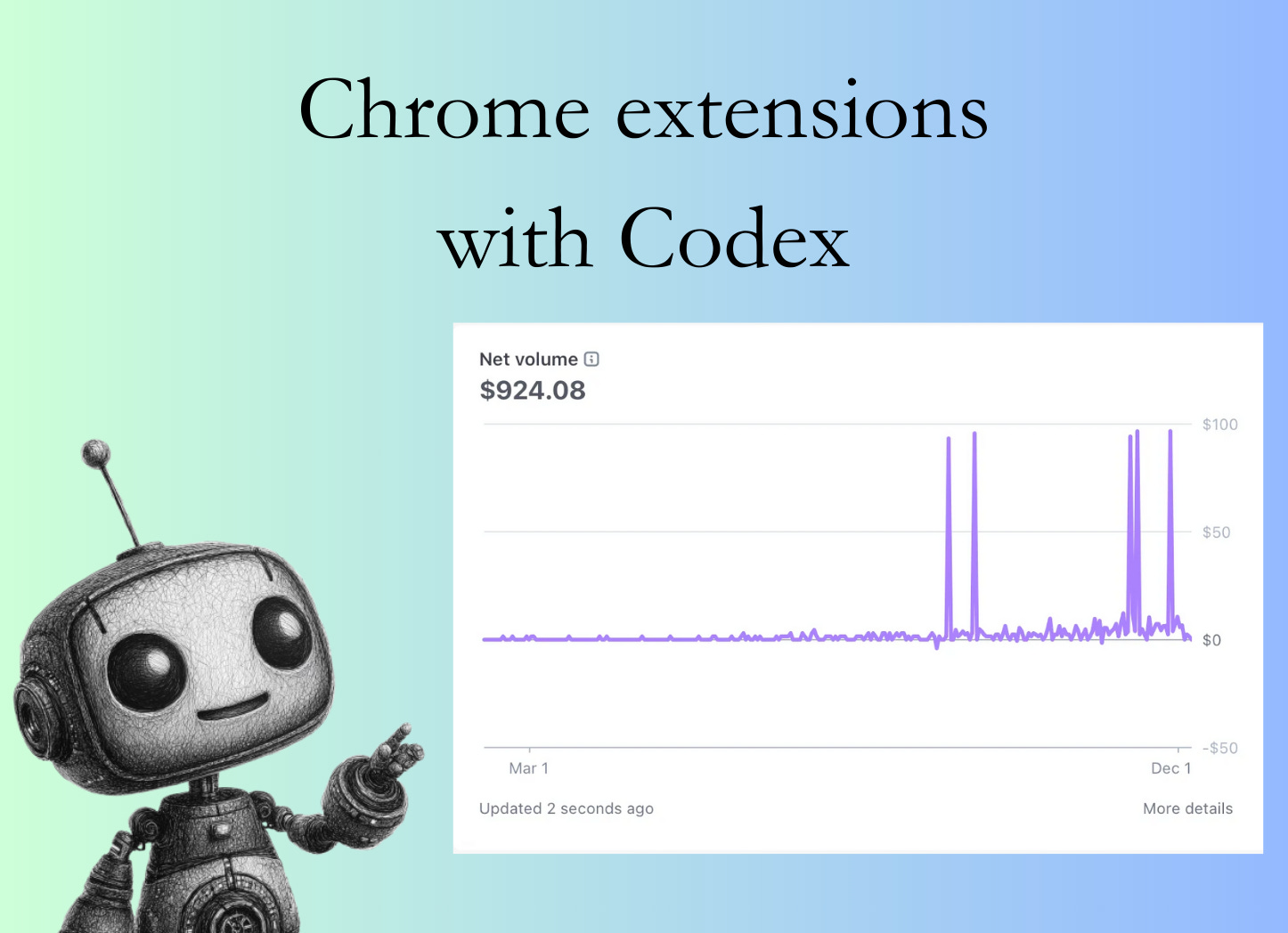
Everyone thinks you need a master plan to build something meaningful.
I sure didn’t have one.
I just moved. If you don’t know me, I rarely hesitate. Half out of curiosity, half out of ‘I needed content for my old newsletter” and somehow the damn project grew faster than most things I’ve ever “strategized.”
Funny how that works. Let me take you through it.
For today’s newsletter, we have the privilege of hearing how Barret | Buying to $10M used AI to build a chrome extension and get real users paying real money.
We’ll show you his actual prompts and how he got initial traction.
If you like today’s focus on actually shipping and monetizing a side project, you’ll probably like Barret’s newsletter. Check it out!
I was just the guy keeping everyone else’s projects alive
For years, my days were a blur of pipelines and deployments.
I was the quiet mechanic under the hood of other people’s dreams.
Tightening bolts, patching leaks, praying nothing caught fire on a Friday afternoon. If something broke, I fixed it. If nothing broke, I waited for the universe to get bored and throw a new fire at us.
It ain’t much, but it was honest lol.
But a man can only fix engines for so long before he wants to build a machine of his own.
Something small. Something scrappy.
Something he could point to, like a kid showing off a crooked birdhouse and say, “Look. I made that!”
Every day, I’d watch writers on Substack pump out Notes on perfect schedules. Morning routines sharper than a Marine’s haircut. Engagement climbing like ivy up a brick wall.
Meanwhile, I was over here losing track of my own espresso, never mind posting times.
And that quiet idea kept whispering, like a mischievous friend in the back of the bar:
“If someone automated this Notes thing … you know people would use it, right?”
I did what most people do with decent ideas:
I nodded, said “yeah, totally,” and did absolutely nothing.
Ideas are free. Courage is expensive.
( That line btw, is exactly why I started on my journey of building a holding company to $10 Million in revenue and why I’m documenting it all in The $10M Acquisition Journal )
The day irritation spilled over
Then one afternoon, something snapped.
Not a poetic, Hollywood “follow your dreams” moment.
Just plain annoyance.
Annoyed at the friction Substack didn’t solve.
Annoyed at my own habit of saying “I should build something again”.
So I opened up Codex CLI.
No fkn candles. No goofy ass rituals.
Just a bro fed up enough to type.
And here’s the fun part: I didn’t start by writing code.
I started by writing a prompt that treated the model like a senior engineer I could boss around.
I basically said:
You’re the senior dev now. I’m management. Build the thing.
Here’s almost exactly what I dropped in for my first prompt:
You are a senior JavaScript engineer specializing in Chrome Extensions (Manifest V3).

Your task is to generate a minimal but working Chrome extension called “Substack Note Scheduler”.

By the end of your output, I should be able to:

1. Put the generated files into a folder.

2. Load it as an unpacked extension in Chrome.

3. Have it load without any errors in the background or console.

4. See a barebones version of:

        •   a content script that injects UI into Substack Notes,

        •   a background script that stores scheduled notes and sets alarms,

        •   a simple inline scheduler flow, and

        •   a floating “Scheduled Posts” overlay that shows scheduled notes.

We are excluding analytics for now. No charts, stats, or metrics UI.

Use plain JavaScript (no TypeScript, no bundlers, no external libraries).

Keep things small, clear, and well-commented, with obvious TODOs for future logic.

HIGH-LEVEL PURPOSE

The extension helps Substack writers schedule Notes instead of posting them immediately.

Core flow:

1. User visits Substack Notes composer page (e.g. https://<subdomain>.substack.com/notes).

2. Content script detects the Note composer and injects:

  • A “Schedule” button next to the normal Post/Publish controls.

  • A floating “Scheduled Posts” pill button at the bottom-right.

3. When user clicks “Schedule”:

  • Prompt the user for a future date/time (for now, use window.prompt).

  • Read the composer text content (simple text-only, no images for now).

  • Send the note + scheduled time to the background script via chrome.runtime.sendMessage.

4.  Background script:

  • Saves scheduled notes into chrome.storage.local.

  • Creates a chrome.alarms entry for that scheduled time.

  • On alarm trigger, retrieves the note data and (for now) just logs a TODO instead of actually posting to Substack. No real network logic yet.

5. The floating “Scheduled Posts” pill:

  • On click, opens a minimal side panel overlay in the current page.

  • That side panel lists all scheduled notes (fetched via message to background).

  • Each item shows:

    • Note title/preview (first line or shortened text),

    • Scheduled date/time,

    • A “Delete” button that cancels/removes it.

    • Deleting a note:

      • Sends a message to the background to remove it from storage and cancel its alarm.

      • Updates the side panel list.

TECHNICAL REQUIREMENTS

GENERAL

• Extension must be Manifest V3.

• Use only plain JavaScript and CSS. No frameworks, no bundlers, no TypeScript.

• Use only the APIs that MV3 allows for background service workers.

• All code should be syntactically correct and load without runtime errors in Chrome.

• Include enough comments for a human developer to extend it later.

• Any real posting to Substack should be left as a // TODO: placeholder, but keep the structure ready.

PERMISSIONS

• storage (for scheduled notes)

• alarms (to trigger scheduled posts)

• scripting

• activeTab

• tabs

• Host permissions for https://*.substack.com/*

FILE AND FOLDER STRUCTURE

Generate a directory structure like this:

substack-note-scheduler/

    manifest.json

    background.js

    content.js

    queue.css

    icon16.png        (placeholder description only, do NOT embed binary, just comment)

    icon48.png        (placeholder description only, do NOT embed binary, just comment)

    icon128.png       (placeholder description only, do NOT embed binary, just comment)

    README.md

You do NOT need to provide actual PNG binaries.

Instead, in your code, just reference icon paths in the manifest and explain in comments that I need to add real icon files.

DETAILED BEHAVIOR

    1.  manifest.json

        •   Manifest V3

        •   Name: “Substack Note Scheduler”

        •   Description: “Schedule Substack Notes to post at a future time.”

        •   Version: “0.0.1”

        •   Icons: use icon16.png, icon48.png, icon128.png

        •   Background:

            •   service_worker: “background.js”

        •   Content scripts:

            •   “content.js” running on Substack Notes pages:

                •   matches: [“https://<subdomain>.substack.com/notes”, “https://*.substack.com/notes”]

                •   run_at: “document_idle”

        •   Permissions:

            •   “storage”

            •   “alarms”

            •   “scripting”

            •   “activeTab”

            •   “tabs”

        •   Host permissions:

            •   “https://*.substack.com/*”

        •   Optional “action” with a default_title and a simple popup-less behavior (click does nothing special, or you can later add a popup.html if desired, but not required for now).

    2.  background.js

        Responsibilities:

            •   Maintain list of scheduled notes in chrome.storage.local.

            •   Handle messages from content.js:

                •   schedule_note: add a note and create an alarm.

                •   get_scheduled_notes: return all scheduled notes.

                •   delete_scheduled_note: delete a specific note and clear its alarm.

            •   Set up chrome.alarms.onAlarm listener:

                •   When an alarm fires, look up the corresponding note.

                •   For now, log: “TODO: post note to Substack”, along with the note content and metadata.

                •   Remove the note from storage after “posting” (so it doesn’t re-trigger).

        Implementation details:

            •   Represent each scheduled note as an object with:

                •   id: string (e.g. generated via Date.now().toString() or similar)

                •   content: string (the note text)

                •   createdAt: number (timestamp)

                •   scheduledTime: number (timestamp, ms since epoch)

            •   Store all scheduled notes in chrome.storage.local under a single key, e.g. “scheduledNotes”.

            •   When creating an alarm:

                •   Use chrome.alarms.create(noteId, { when: scheduledTime }).

    3.  content.js

        Responsibilities:

            •   Detect when the user is on a Substack Notes composer page.

            •   Look for a text area or contenteditable element that likely represents the Note composer.

            •   Use a polling or mutation observer approach, but keep it simple and robust.

            •   Once composer is found:

                •   Inject a “Schedule” button next to existing controls.

                •   Inject a floating pill button at bottom-right:

                    •   Text: “Scheduled Posts”

            •   Schedule button behavior:

                •   On click:

                    •   Get the current note content from the composer.

                    •   If empty, show alert(”Please type something before scheduling.”).

                    •   Prompt user for a date/time string, e.g. using window.prompt(”Enter a future date/time (YYYY-MM-DD HH:MM, 24h):”).

                    •   Parse the input into a timestamp; if invalid or in the past, show an error alert and abort.

                    •   Create a message with { type: “schedule_note”, payload: { content, scheduledTime } }.

                    •   Send via chrome.runtime.sendMessage.

                •   On success:

                    •   Optionally clear the composer (so it looks like the note was scheduled).

                    •   Optionally show a brief confirmation with alert or a small inline notification.

            •   Floating pill behavior:

                •   The pill is fixed in bottom-right corner.

                •   On click:

                    •   If side panel is closed, open it; if open, close it.

                •   When opening:

                    •   Request scheduled notes from background with message { type: “get_scheduled_notes” }.

                    •   Render a simple side panel overlay on the right side of the current page.

            •   Side panel overlay:

                •   Use a <div> injected into document.body.

                •   Add a semi-light background, fixed position on the right, full height, about 300px width.

                •   Side panel contents:

                    •   Title: “Scheduled Notes”

                    •   A list of scheduled notes. For each note:

                        •   First 80–100 chars of the content.

                        •   A human-readable scheduled time.

                        •   A small “Delete” button.

                    •   A “Close” button at the top or top-right.

                •   Deleting a note:

                    •   Clicking “Delete” sends { type: “delete_scheduled_note”, noteId } to background.

                    •   On success, remove the item from the DOM or re-fetch the list.

    4.  queue.css

        •   Provide minimal styling for:

            •   The injected “Schedule” button (so it’s visually distinct but not ugly).

            •   The floating “Scheduled Posts” pill.

            •   The side panel overlay and its internal elements.

        •   Use simple class names, e.g. .sns-schedule-button, .sns-floating-pill, .sns-side-panel, .sns-note-item, etc.

        •   Make sure styles are namespaced (prefixed) to avoid clashing badly with Substack CSS.

    5.  README.md

        •   Brief explanation of:

            •   What the extension does.

            •   How to load it as an unpacked extension in Chrome.

            •   The current limitations (no real posting to Substack yet, uses prompt for date/time, etc.).

            •   Basic future TODO list.

IMPLEMENTATION DETAILS AND CONSTRAINTS

    •   All JavaScript should be ES6+ but compatible with Chrome extensions MV3.

    •   Use chrome.runtime.onMessage.addListener for content <-> background communication.

    •   Use chrome.storage.local for persistence.

    •   Use chrome.alarms for scheduling future actions.

    •   For date parsing:

        •   Keep it simple and robust: the prompt expects a string like “2025-01-31 13:45”.

        •   Implement a small helper function in content.js to parse this into a timestamp.

        •   Handle invalid input gracefully (alerts and abort).

    •   Ensure that:

        •   Accessing chrome APIs is always guarded by existence checks if necessary to avoid runtime errors.

        •   There are no unresolved variables or functions.

        •   The extension can be loaded immediately in Chrome without additional build steps.

OUTPUT FORMAT

    1.  First, print the directory tree as plain text, for example:

        substack-note-scheduler/

            manifest.json

            background.js

            content.js

            queue.css

            icon16.png

            icon48.png

            icon128.png

            README.md

    2.  Then, for each file, output:

        A line with the file path, like:

        — manifest.json —

        followed by the full file contents.

        Do this for:

            •   manifest.json

            •   background.js

            •   content.js

            •   queue.css

            •   README.md

    3.  For icon files, do NOT output binary data. Just mention in comments (in README and/or manifest comments inside the code block) that I need to add my own PNGs.

    4.  Make sure all files together form a self-consistent, loadable extension.

Now, generate the complete code for this barebones but fully loadable Chrome extension according to the above requirements.
Wild? Yes.
Overkill? Maybe.
Effective? Absolutely.
I hit enter.
Gemini spit out the skeleton of the entire extension - manifest.json, background.js, content.js, styles, README. Not a final product or perfect, but shockingly coherent.
Twenty minutes later, I had a working, loadable, barebones Substack Note Scheduler.
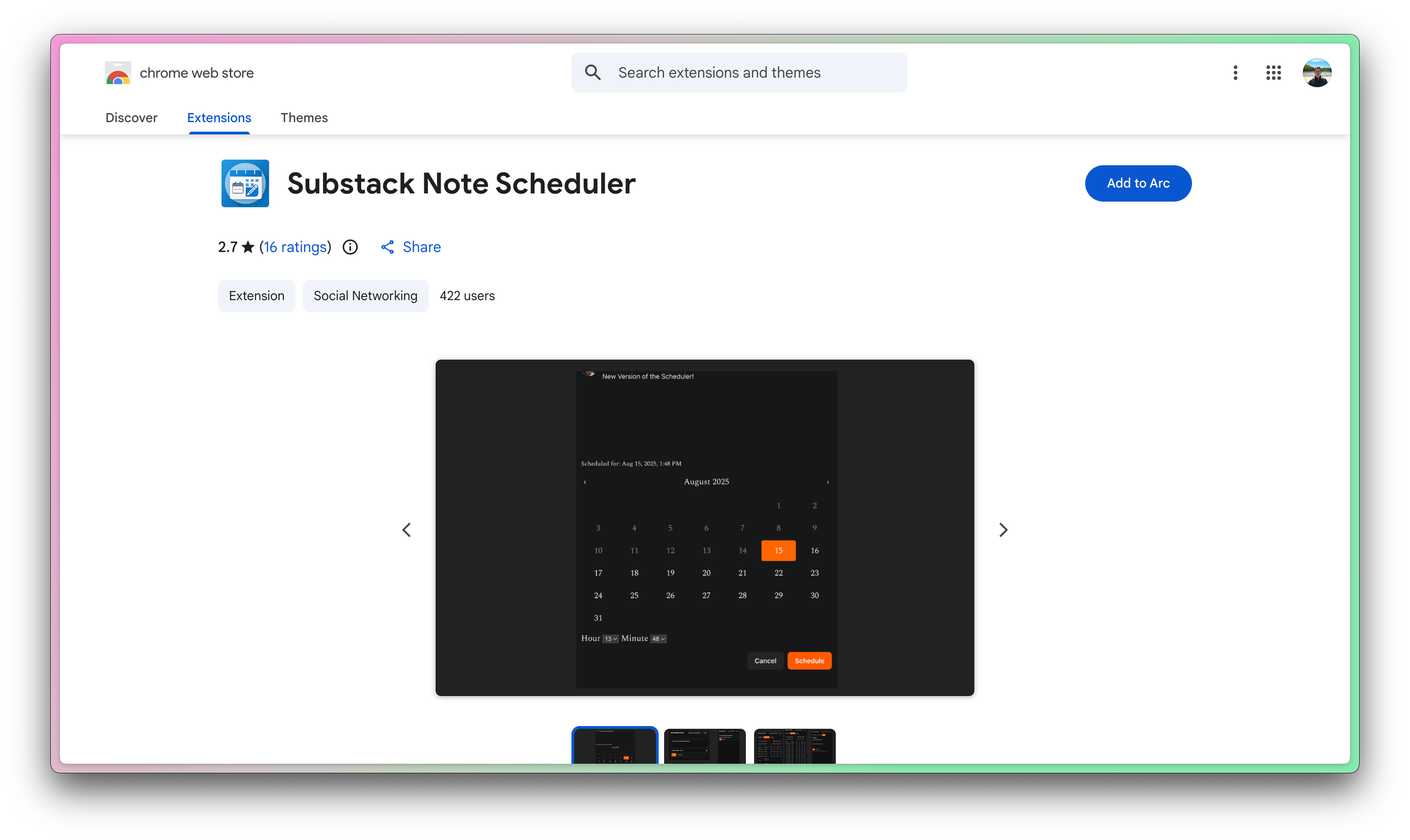
I didn’t “architect” it in some ivory tower.
I just gave the model a clear job and got out of its way.
🔥 Ditch the vibes, get the context
Today’s newsletter is sponsored by Augment Code!
Augment Code’s powerful AI coding agent meets professional software developers exactly where they are, delivering production-grade features and deep context into even the gnarliest codebases.
With Augment Code you can:
Keep using VS Code, JetBrains, Android Studio, or even Vim
Index and navigate millions of lines of code
Get instant answers about any part of your codebase
Build with the AI agent that gets you, your team, and your code
Ditch the vibes and get the context you need to engineer what’s next.
Then the numbers started to grow out of the dark
I expected nothing.
Maybe one install from a reader of my newsletter.
Maybe two if I bribed a friend.
Instead, installs started trickling in. Pretty slow at first, like shy animals coming out at dusk.
Then more. And more.
It was organic. Stupid-fast ( relatively speaking lol ).
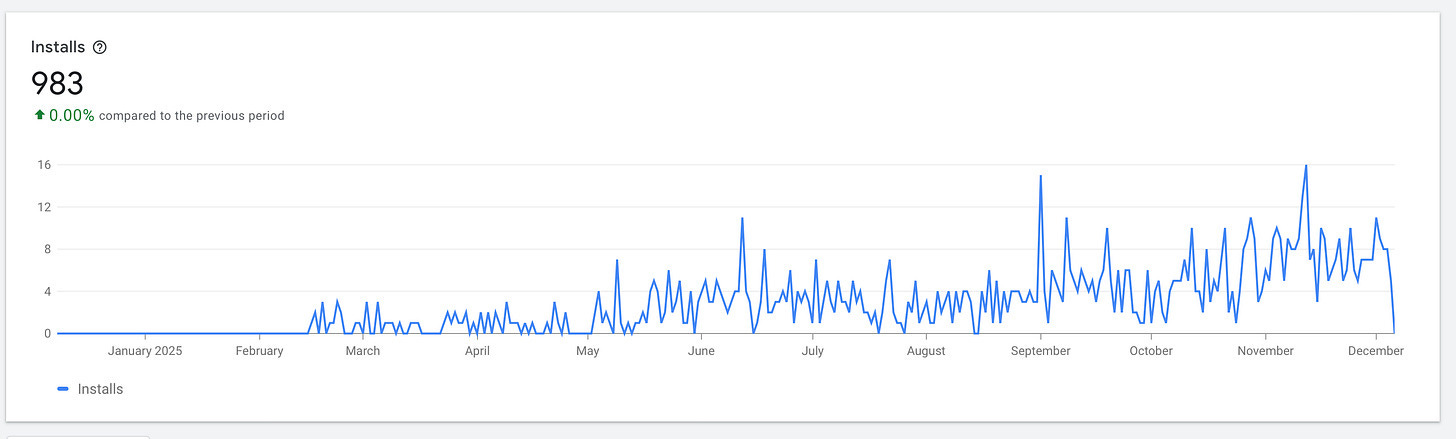
Real humans were installing it.
Real writers. Real Substack users.
And in that moment, something warmed in my chest. Pride, maybe? Actually, more like surprise. Or the quiet realization that this little content-built tool just tapped into a real, latent need.
It felt like tripping over a rusted metal box in your backyard and realizing it’s full of cash.
That’s when the engineer brain and the acquisition brain shook hands 🤝.
> If a tiny tool like this can pull in users and cash, what happens when I point this same energy at buying real-world businesses?
This is the backbone of The $10M Acquisition Journal.
Now what?
At that point, I had a choice.
I could pretend it was a fluke, leave it alone, and go back to my regularly scheduled life.
Or I could do the scary thing: actually fkn try!
Polish the UX
Build a landing page
Test ads
Treat it like a real product and not just a one-night stand with the command line.
I’m pretty sure I’m going to choose the scary path. And not because I felt ready.
But because momentum is rare, and when life hands you some, you don’t drop it on the floor.
Building fast with AI (without losing my mind)
I live in the world of order. Version control. CI pipelines. Guardrails.
This was the opposite: landing page copy, ad creative, CTA tweaks, loops of “will anyone care about this?” at 2 a.m.
I decided to test out Gemini and it became my co-pilot.
I’d describe what I wanted.
It would spit out boilerplate or a first draft.
I’d tear into it like an editor with a hangover; cutting, rewriting, shaping.
Sometimes it nailed it. Sometimes it gave me something insane.
But either way, I was moving faster than I would have alone.
That’s the real story here:
Not that AI “built everything for me.”
But that it lowered the friction between idea and execution so much that I actually shipped.
The cliffhanger nobody warns you about
The hardest part wasn’t the engineering. It wasn’t the AI prompts. Wasn’t even Chrome’s Manifest V3 tantrums.
It was this quiet, brutal question:
“What if I actually put effort into this… and it still fails?”
That’s the weight most of us quietly carry.
If we don’t try, we can pretend we could have succeeded.
If we try and fall flat, the illusion is gone.
But here’s what building this extension taught me:
The only thing worse than failing is waking up a year from now and realizing you never stuck your neck out at all.
So I kept going. One small decision at a time.
Schedule button. Floating pill. Queue overlay. Landing page.
Imperfect, but real.
The real lesson that slapped me awake
At the end of all this, I realized something:
The win wasn’t the extension. It wasn’t the downloads. It wasn’t the charts.
The real win was that I stopped waiting for a “perfect moment” to start.
I took an emotion - my irritation and love of building - and turned it into motion.
I turned motion into a prompt. Turned a prompt into an extension.
Turned an extension into something people actually use ( and pay for! - (( yes I put it behind a paywall)) )
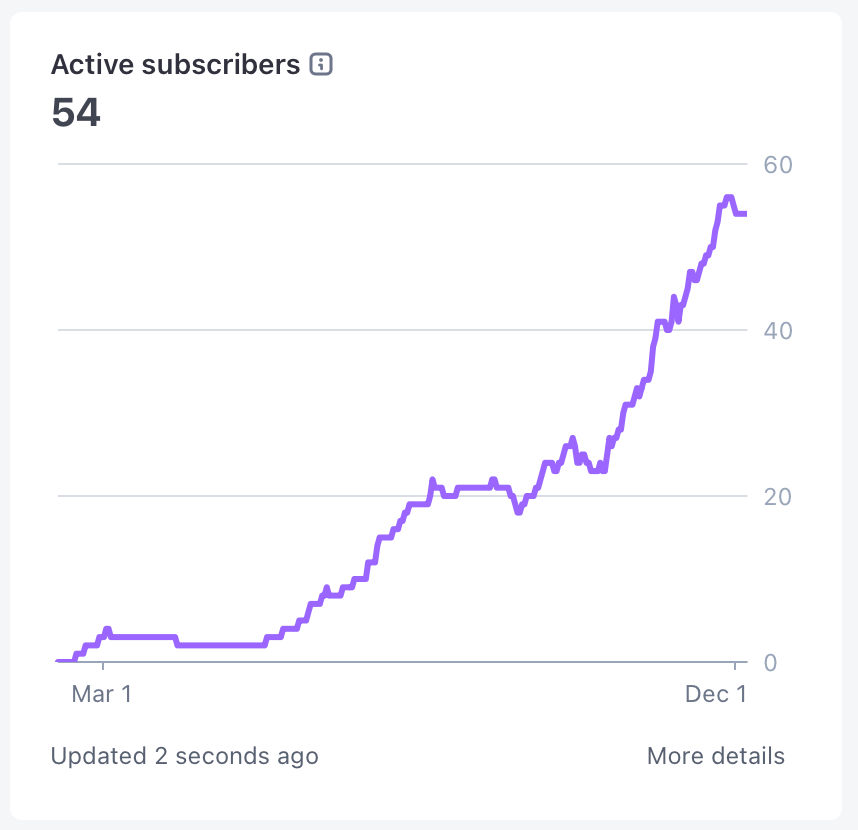
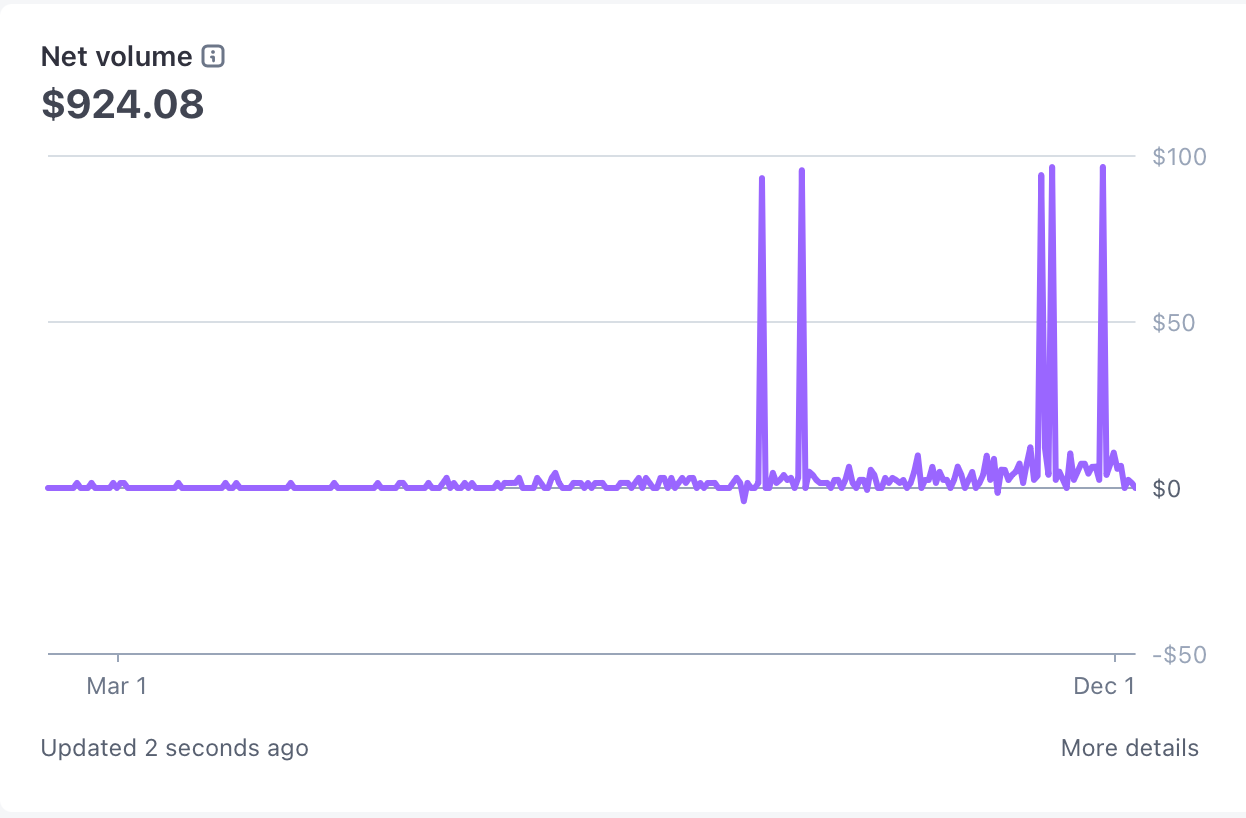
Shipping beat strategy. Momentum beat perfection.
A long, messy prompt plus Codex beat another year of “someday.”
And that, more than anything, made me feel alive again as a builder.
If you’re building something, this is your permission slip
Your next project does not need to start with genius.
Mine started with mild annoyance and a lukewarm coffee.
But I built anyway. And it moved.
And that movement pulled me forward like a current I didn’t know I was standing in until it dragged me off the shore.
If you’re a dev sitting on an idea - Big, small, stupid, brilliant - steal this pattern:
Write a brutally clear prompt.
Treat the model like a senior engineer.
Let it draft the skeleton.
Then you do the heavy lifting of judgment and craft.
Ship something small. Today, not “someday.”
You never know which idea will grow legs. Or teeth. Or wings.
Hell, some of them grow all three lol!
If you’re here to build, to move, to try, to punch fear in the mouth instead of negotiating with it…
Stay close. It’s just getting interesting.
Terrific insights here, Jeff!